2-Wire Villa Video Door Phone: How to Add and Delete Cards
september 7, 2026
Deel dit artikel
Card-based access is one of the most convenient features of a modern villa video intercom system. It eliminates the need for physical keys, simplifies access management, and provides a secure, tap-to-enter experience for family members, staff, and regular visitors.
Most 2-wire villa video door phone systems support two primary methods for managing access cards:
- Via the indoor monitor’s touchscreen menu – The most intuitive and common method.
- Using dedicated physical “Master Cards” – A faster, card-only method once the system is set up.
This guide covers both methods in detail, along with troubleshooting tips and best practices.
Before You Begin: What You’ll Need
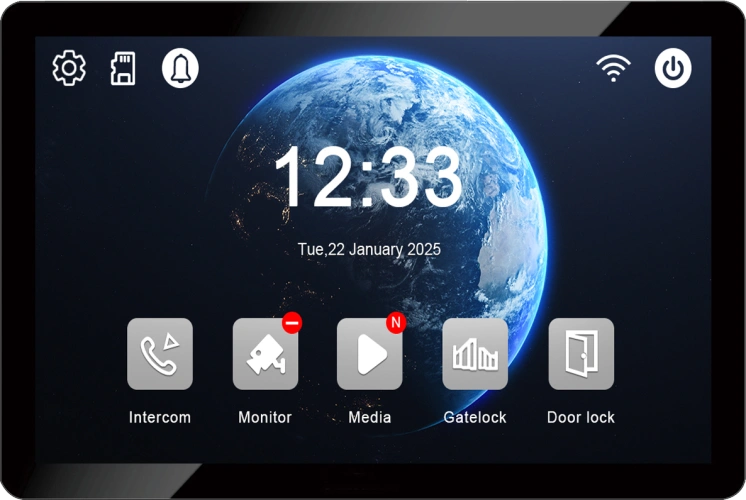
- Binnenmonitor – powered on and displaying the main interface.
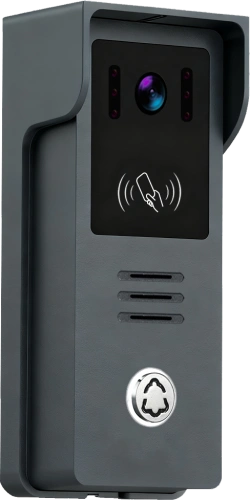
- Outdoor station – connected and functional.
- Blank or unregistered RFID/IC cards – the cards you want to add.
- Admin password (for menu-based management) – factory default is typically
666666. - Master Cards (for card-based management) – some systems come with pre‑programmed ADD and DELETE master cards.
Method 1: Adding and Deleting Cards via the Indoor Monitor Menu
This is the most straightforward method and works on most 2-wire villa systems with a touchscreen indoor monitor.
Step 1: Access Card Management
- From the indoor monitor’s main interface, tap the settings icon (usually a gear or wrench symbol) to enter the system settings menu.
- Look for and select “Card Management” or a similarly named option.
- Enter the system admin password when prompted. The factory default password is typically
666666.
Security Tip: Change the default password after your first login to prevent unauthorised access.
Step 2: Add a New Card
- In the Card Management menu, tap the “Add” of “+” icon.
- The system will enter card-swiping mode. You will typically see an on-screen prompt or hear a beep from the outdoor station.
- Within the time limit (usually 15–30 seconds), present the new blank card to the card reader area on the outdoor station.
- The system will confirm successful addition with an on-screen message, a beep, or both.
- Tap the “Return” of “Back” icon to view the updated card list and confirm the new card has been registered.
Step 3: Delete a Card
- In the Card Management menu, tap the “Delete” of “–” icon.
- The system will enter card-swiping mode for deletion.
- Present the card you wish to remove to the card reader on the outdoor station.
- The system will confirm successful deletion with an on-screen message or a beep.
- Tap the “Return” of “Back” icon to view the updated card list and confirm the card has been removed.
Method 2: Adding and Deleting Cards Using Master Cards
Some 2-wire systems include dedicated physical Master Cards – typically one labelled “ADD” and one labelled “DELETE”. This method allows you to manage cards without navigating the indoor monitor menu, which can be faster for property managers or frequent updates.
How to Add a User Card
- Ensure the system is in standby mode (no active calls).
- Present the MASTER CARD ADD to the card reader on the outdoor station. You should hear a confirmation sound (e.g., two short beeps).
- The system is now in addition mode.
- Present each new blank card you wish to add, one by one, to the reader.
- A long beep confirms successful addition. If you hear two long beeps, that card is already registered.
- To exit addition mode, present the MASTER CARD ADD again. The system will also exit automatically after a period of inactivity (e.g., 15 seconds).
How to Delete a User Card
- Ensure the system is in standby mode.
- Present the MASTER CARD DELETE to the card reader on the outdoor station. You should hear a confirmation sound.
- The system is now in deletion mode.
- Present the card you wish to delete to the reader.
- A long beep confirms successful deletion.
- To exit deletion mode, present the MASTER CARD DELETE again. The system will also exit automatically after a period of inactivity.
How to Delete All Cards (Factory Reset)
⚠️ Warning: This action is irreversible. All registered cards will be removed.
- Ensure the system is in standby mode.
- Present the MASTER CARD DELETE to the reader.
- Present the MASTER CARD ADD to the reader to initiate the format operation.
- Within 3 seconds, present the MASTER CARD ADD again to confirm.
- The system will delete all user cards.
Card Management: A Quick Reference
Troubleshooting Common Card Issues
Best Practices for Card Management
Why Choose FARHD for Your 2-Wire Villa Intercom?
FARHD has been designing and manufacturing video intercom systems since 1998, with over 28 years of industry experience. Our 2-wire villa video door phone systems offer:
- IC card reader for flexible, keyless entry
- Simple 2-wire installation – reuses existing cabling, no complex rewiring
- 1080P HD camera with wide-angle and infrared night vision
- 7-inch and 10-inch IPS touchscreen indoor monitors
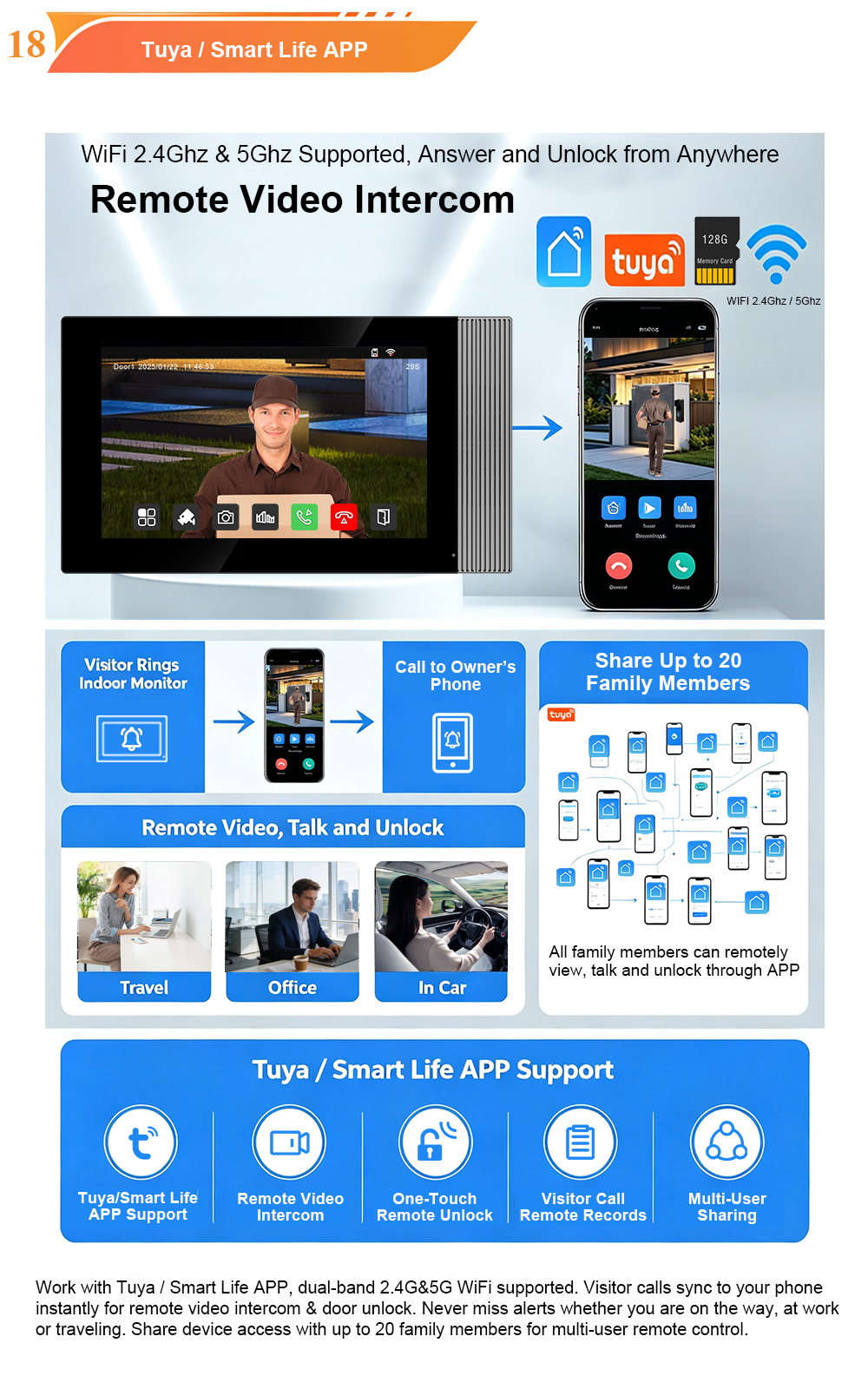
- Tuya/Smart Life app remote answering, live view, and unlock
- IP65 weatherproof – built for outdoor durability
- OEM/ODM ready – custom branding and configuration available
Ready to upgrade your villa security?
📩 Contact us for catalog, pricing, or to request a sample.
🌐 Website: www.farhd.com
📧 Email: [email protected]
FARHD – Video Intercom Manufacturer Since 1998.
Mogelijk bent u ook geïnteresseerd in
-
New UI Upgrade! FARHD Indoor Monitor for Video Intercom System – Smarter Control, Seamless Integration
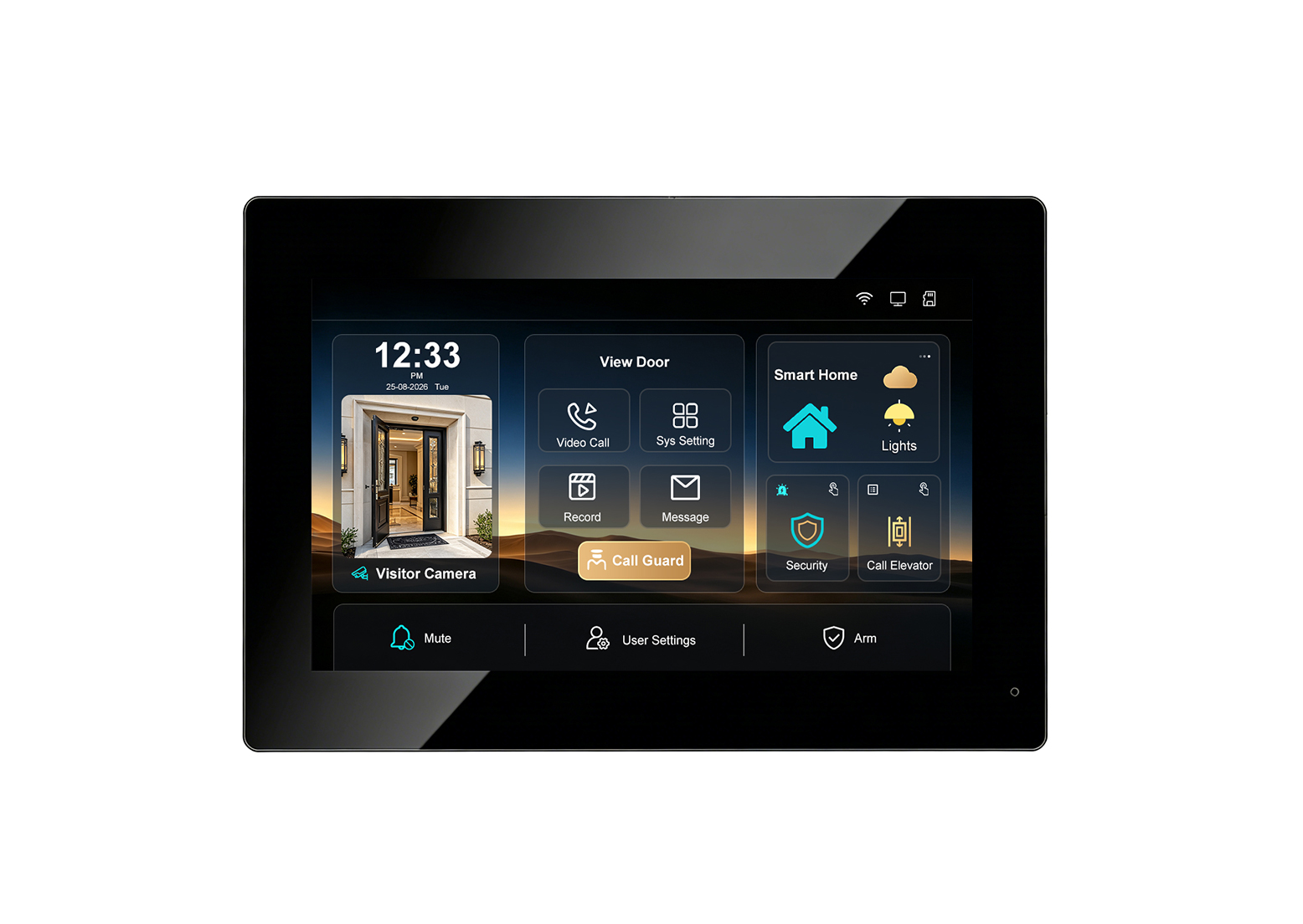
Introducing the upgraded FARHD indoor monitor: a smarter, more intuitive hub for your video intercom system. With a refreshed user interface, RS-485 smart home integration, elevator control linkage, security alarm support, Tuya app remote access, up to 128GB SD card storage, and a multi-language UI, this monitor is designed to elevate the entry experience for…
-
Aluminum Casing Call Panel with Card Unlock & 2-Wire Connection: A Premium Video Intercom Solution with 7-Inch Indoor Monitor
When you combine the durability of an aluminum casing, the convenience of card unlock, the simplicity of 2-wire installation, and the clarity of a 7-inch indoor monitor, you get a video intercom system that excels in both performance and aesthetics. FARHD’s 2-Wire Video Door Phone with aluminum call panel is designed for villas, apartments, and…
-
Inside FARHD Factory | V1-IP Video Intercom: Where Precision Meets Reliability
Take a look inside our factory as the V1-IP outdoor IP video intercom is assembled, calibrated, and tested. From 1080P HD imaging and PoE connectivity to IP65 weatherproofing and wide-temperature operation, every unit is built to perform in the real world. At FARHD, we believe that a great product is not just designed—it is built….
-
How to Connect a Wireless Video Intercom to Tuya Smart App 📱
A step-by-step guide to pairing your Tuya-compatible wireless video door phone with the Tuya Smart or Smart Life app — enabling video calling, remote monitoring, and door unlocking from your smartphone, anywhere in the world. Wireless video intercoms have transformed home and building security. No longer bound by complex wiring, these systems can be installed…