2-Wire Apartment Outdoor Station Time & Date Settings, and Binding Indoor Monitors to the App
Outubro 26, 2026
Partilhar este artigo
In a 2-wire apartment intercom system, two configuration tasks often determine whether the system behaves predictably in daily use: correct time and date on the outdoor station, and correct binding of each apartment’s indoor monitor to the mobile app. Time stamps affect event logs, visitor snapshots, and recorded clips. App binding determines whether residents can answer calls and unlock remotely. Both are straightforward, but they require attention to how the 2-wire system distributes configuration across devices.
This guide covers the practical steps for setting time and date, binding indoor monitors to the app, and avoiding the common errors that cause timestamp drift or duplicate device assignments.
Why Time and Date Settings Matter
The outdoor station and indoor monitors use timestamps for:
- Visitor call logs – which apartment called, and when.
- Motion detection records – snapshots and video clips are stamped with date and time.
- Access card events – card swipes are logged with time for audit purposes.
- Notificações de aplicações – the mobile app displays the time of each event.
If the time is wrong, the logs are misleading. A clip recorded at 20:00 may appear as 08:00, or a card event from Monday may show Sunday’s date. For property managers reviewing incidents, timestamp accuracy is not cosmetic—it is evidence integrity.
How Time and Date Are Set in a 2-Wire Apartment System
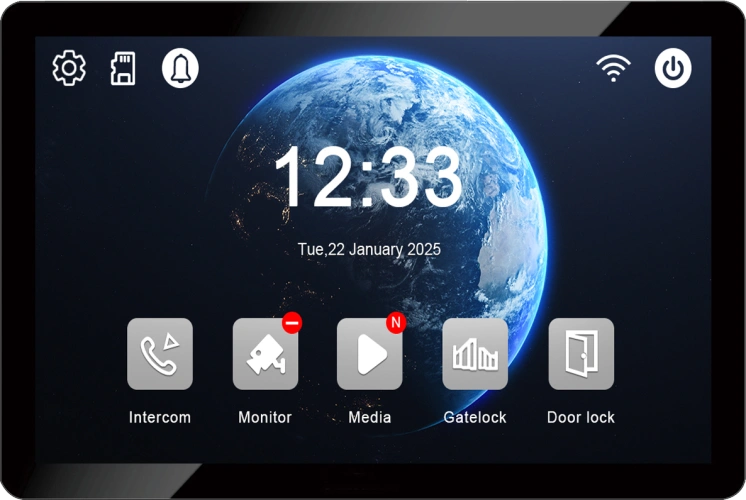
In most 2-wire systems, the indoor monitor is the configuration master for time and date. The outdoor station receives time synchronisation from the indoor monitor over the 2-wire connection. This means you do not usually set time separately on the outdoor station; you set it once on the indoor monitor, and the outdoor station follows.
There are three common methods, depending on model:
| Método | Where it is configured | Melhor para |
|---|---|---|
| Manual setting on indoor monitor | Indoor monitor menu → System Settings → Time & Date | Systems without network connectivity, or initial setup before app pairing |
| Network time sync via app | Tuya Smart Life app → Device Settings → Time Zone / Auto Sync | Systems connected to Wi-Fi; ensures consistent time across multiple monitors |
| Manual setting on outdoor station (if supported) | Outdoor station menu (on models with touchscreen or keypad) | Standalone systems or troubleshooting when sync fails |
Recommended approach: Set time zone and enable automatic time synchronisation through the app for each indoor monitor. This keeps all apartments aligned to the same time reference and avoids drift over months.
Step-by-Step: Setting Time and Date
Method 1: Via the Indoor Monitor Menu (Manual)
- On the indoor monitor, enter the Settings menu.
- Selecione Time & Date ou System Time.
- Set the correct year, month, day, hour, and minute.
- Select the correct time zone if the option is available.
- Save and exit.
- Repeat for each indoor monitor in the system.
Importante: If multiple indoor monitors are installed in different apartments, each monitor should be set to the same time zone. Otherwise, logs from different apartments will not align.
Method 2: Via the Tuya Smart Life App (Automatic)
- Open the Tuya Smart Life app and select the indoor monitor device.
- Enter Device Settings.
- Locate Time Zone ou Time Synchronisation.
- Ative automatic time sync (if available).
- Confirm that the displayed time matches the local time.
- The outdoor station will receive the synchronised time over the 2-wire connection.
Nota: Automatic time sync requires the indoor monitor to be connected to a 2.4GHz Wi-Fi network and paired with the app. If the network is unavailable, use manual setting.
Method 3: Via the Outdoor Station (If Supported)
Some outdoor stations with a touchscreen or keypad allow direct time setting:
- Enter the outdoor station’s Settings ou Admin Menu.
- Selecione Time & Date.
- Adjust the values and save.
- Verify that the indoor monitor reflects the same time.
This method is useful for initial commissioning before app pairing, but it is not a substitute for system-wide synchronisation.
Binding Indoor Monitors to the App
Each apartment’s indoor monitor must be bound to the mobile app so that residents can receive calls, view live video, and unlock the door remotely. In a multi-apartment building, this means one device per apartment, each with its own app account or shared family access.
Prerequisites
- Indoor monitor connected to a 2.wi-Fi de 4 GHz network.
- Tuya Smart Life app installed on the resident’s smartphone.
- The indoor monitor’s device ID or pairing code (if required by the model).
- The correct room number already configured on the indoor monitor.
Step-by-Step: Binding an Indoor Monitor
- Power on the indoor monitor and confirm it is connected to the 2-wire system.
- Connect the monitor to Wi-Fi – In the monitor’s settings, select the 2.4GHz network and enter the password.
- Open the Tuya Smart Life app and log in with the resident’s account.
- Tap “Add Device” and select the appropriate category (e.g., “Security & Sensors” → “Video Intercom” or “Smart Camera”).
- Follow the pairing instructions – The app will search for the device. If automatic discovery fails, select manual pairing and enter the device ID.
- Assign the device to a room – Name it according to the apartment (e.g., “Apartment 101 – Living Room”).
- Test the connection – Press the call button on the outdoor station. The app should ring. Answer, test two-way audio, and test remote unlock.
Binding Multiple Indoor Monitors in One Apartment
If an apartment has more than one indoor monitor (e.g., living room and bedroom), each monitor can be bound to the same app account as a separate device. This allows the resident to answer from either monitor and receive notifications on the same phone.
Importante: Do not bind the same monitor to multiple independent app accounts unless the system explicitly supports multi-account sharing. Duplicate binding can cause call routing conflicts.
Family Sharing
For family members in the same apartment, use the app’s Home Management ou Member Sharing feature to grant access to additional users. This allows multiple family members to receive calls and unlock the door from their own smartphones, while the primary account retains administrative control.
Multi-Apartment Considerations
In a building with many apartments, app binding must be managed systematically:
| Tarefa | Recommended approach |
|---|---|
| Unique room numbers | Assign each indoor monitor a unique room number before app binding. This ensures calls route correctly. |
| Unique device names | Name each device in the app with the apartment number and room (e.g., “Apt 101 – Living Room”). |
| Separate accounts per apartment | Each apartment should use its own app account, or a shared building account with clearly separated device groups. |
| Wi-Fi coverage | Confirm that each apartment has adequate 2.4GHz Wi-Fi signal. Weak signal causes app disconnections. |
| Time sync | Enable automatic time sync on each monitor so that logs and notifications align across apartments. |
Solução de Problemas Comuns
| Questão | Possible cause | Solução |
|---|---|---|
| Time resets after power loss | No automatic sync configured | Enable network time sync via the app; check indoor monitor battery backup (if applicable) |
| Outdoor station time differs from indoor monitor | Sync not completed | Re-save time on the indoor monitor; power cycle the outdoor station |
| App cannot find the device | Wi-Fi on 5GHz or device not in pairing mode | Switch phone to 2.4GHz; reset the monitor’s Wi-Fi and retry |
| App shows device offline | Wi-Fi signal weak or network changed | Check Wi-Fi signal; reconnect the monitor to the network |
| Multiple apartments show the same device | Duplicate binding | Remove the device from the incorrect account and re-bind to the correct apartment |
| Call rings the wrong apartment | Room number misconfigured | Reconfigure the room number on the indoor monitor and verify button mapping on the outdoor station |
| Remote unlock fails from app | Relay wiring or lock power issue | Test unlock from the indoor monitor; check lock power supply and relay connections |
Best Practices for Time and App Configuration
- Set time zone correctly for each indoor monitor, especially in buildings that span multiple time zones or have daylight saving changes.
- Enable automatic time sync where available to avoid drift.
- Bind each monitor to the correct apartment account before handing the system over to residents.
- Test app functions (call, audio, video, unlock) for each apartment, not just one sample.
- Document device names and room numbers for future maintenance.
- Keep the app and device firmware updated to maintain compatibility and security.
Why Choose FARHD for 2-Wire Apartment Systems?
FARHD has been designing and manufacturing video intercom systems since 1998, with over 28 years of industry experience. Our 2-wire apartment systems support:
- 7-inch and 10-inch IPS indoor monitors with Tuya Smart Life app integration.
- 2-wire non-polarity connection for straightforward installation and retrofit.
- Multi-button outdoor stations for 4 to 16 apartments.
- Unique room number configuration and button mapping.
- Gravação local em cartão SD with timestamped visitor logs.
- IP65 outdoor stations rated for -40°C to +70°C.
- OEM/ODM/SKD services e no MOQ for trial orders.
For projects that require app-based remote access and accurate event logs, the combination of correct time synchronisation and proper app binding is essential. FARHD provides the documentation and technical support to support this configuration.
Contact Us for Catalog, Pricing, and Samples
If you are configuring a 2-wire apartment system and need guidance on time settings or app binding, our technical team can assist.
📩 Email: [email protected]
🌐 Website: www.farhd.com
Permite a comunicação sem abrir a porta. WhatsApp: +86 188 2370 9809 / +86 199 2545 1918
FARHD – Video Intercom Manufacturer Since 1998.
#2WireIntercom #ApartmentIntercom #TimeDateSettings #TuyaApp #SmartLife #AppBinding #VideoIntercom #AccessControl #FARHD #OEM #ODM #BuildingSecurity
Também pode interessar-lhe
-

Visit FARHD at the 2026 China International Security Products Expo — November 3–6, 2026, Booth W1Y05
The 2026 China International Security Products Expo will be held November 3–6, 2026. As a Chinese source factory with 28 years of focus on video door phones and intercom systems, FARHD sincerely invites distributors, system integrators, real estate developers, and assembly factory partners from around the world to visit Booth W1Y05 for face-to-face discussions on…
-
Audio Intercom Systems with 2-Wire Connection and Easy Card Management: Simple, Reliable Access Control for Modern Buildings
Not every building project needs video. In many apartment buildings, office complexes, residential communities, and staff facilities, clear audio communication combined with reliable access control is the practical, cost-effective choice. What matters most in these environments is straightforward installation, simple operation, and long-term reliability—especially when managing access cards across dozens or hundreds of users. FARHD’s…
-
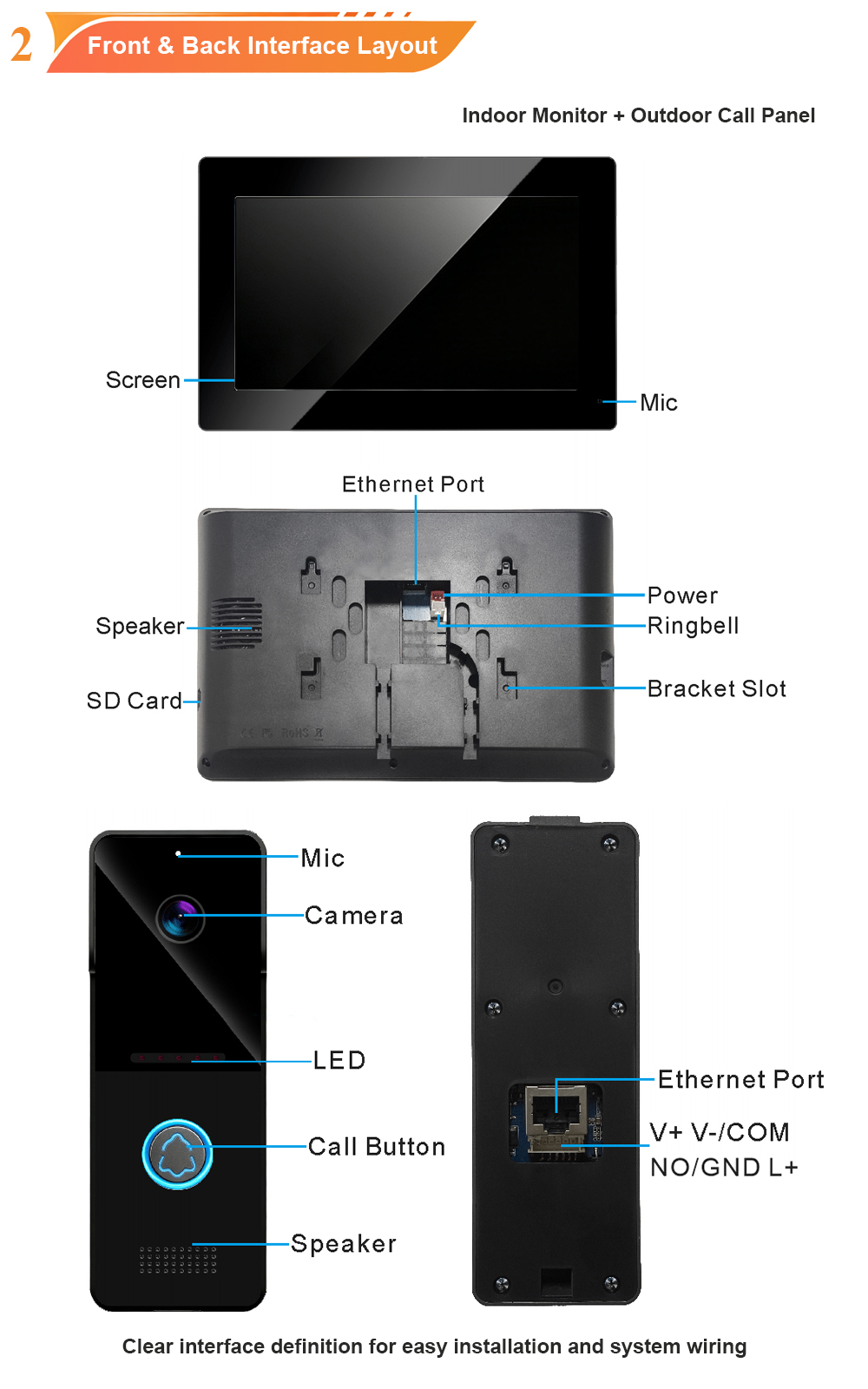
WiFi Connecting and Scan QR Code to Bind with the App: New UI for IP Villa Video Door Phone
Setting up a smart villa intercom should not require a technical manual. With the newly upgraded UI on FARHD’s IP villa video door phone, connecting to WiFi and binding the device to the mobile app is now faster and more intuitive than ever. A clear on-screen guide, a visible QR code, and a streamlined pairing…
-
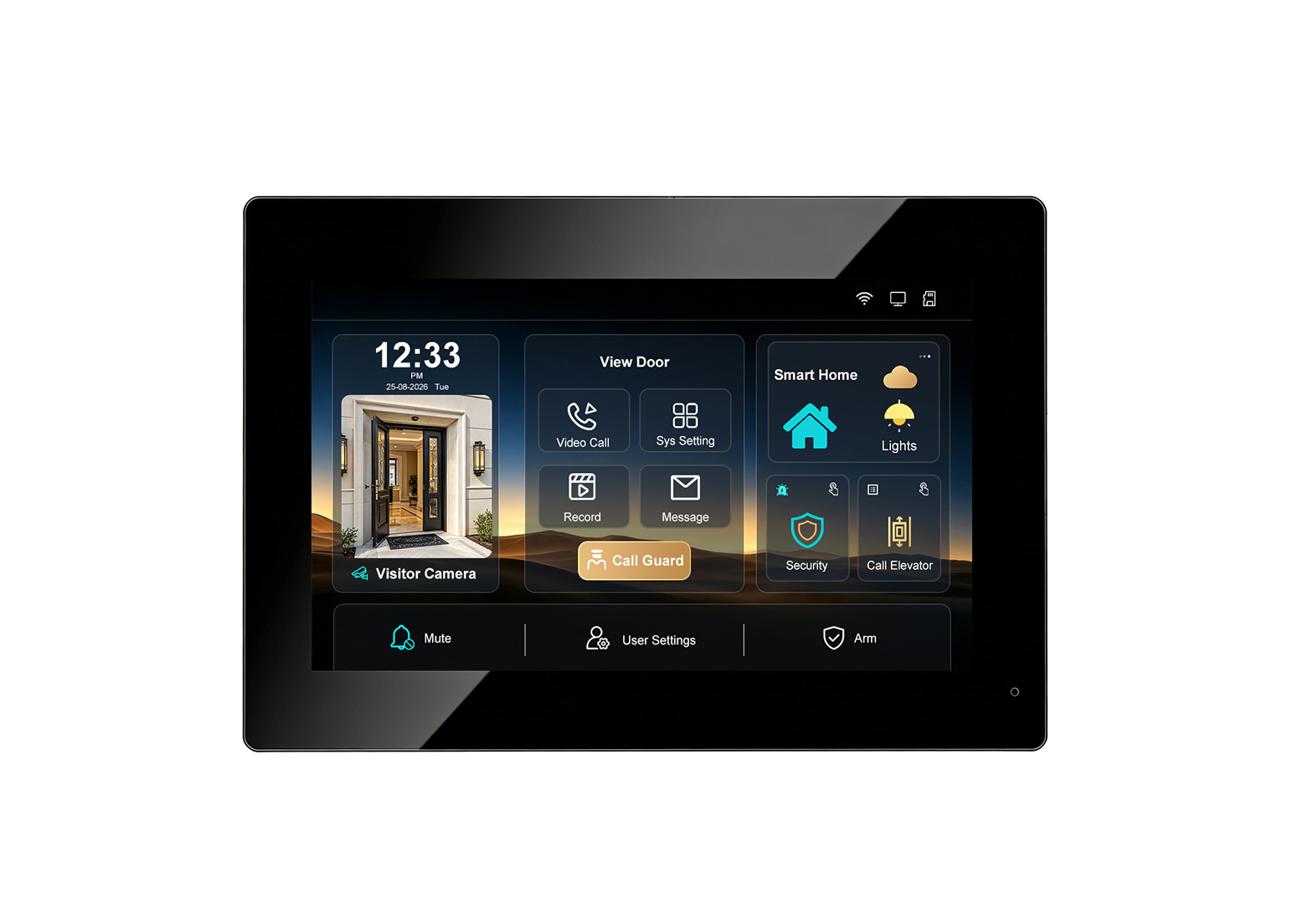
Newly Upgraded UI for IP Video Villa Door Phone: WiFi & App Supported, Up to 128GB Memory Card, Multiple Languages
A video intercom is only as good as the interface residents use every day. A powerful system with a confusing menu is a system that frustrates the people it is meant to protect. That is why FARHD has completely redesigned the user interface for its IP video villa door phone—making every function easier to reach,…