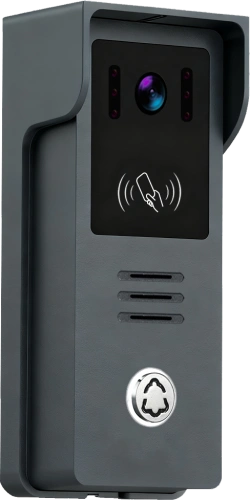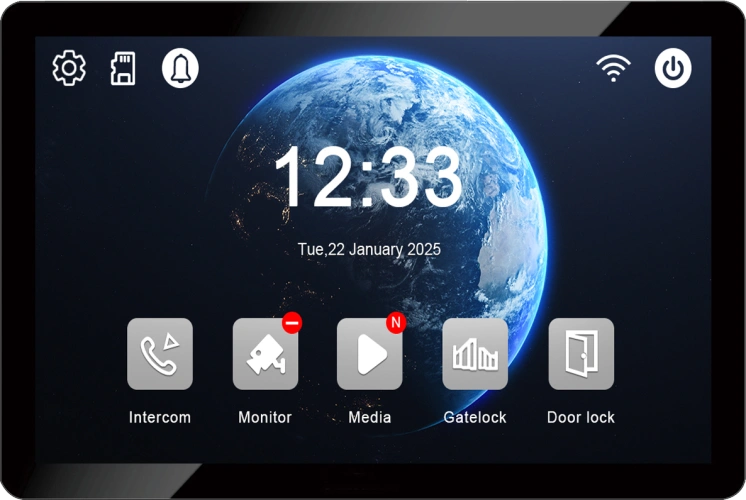
How to Connect a Wireless Video Intercom to Tuya Smart App 📱
September 20, 2026
Diesen Artikel teilen
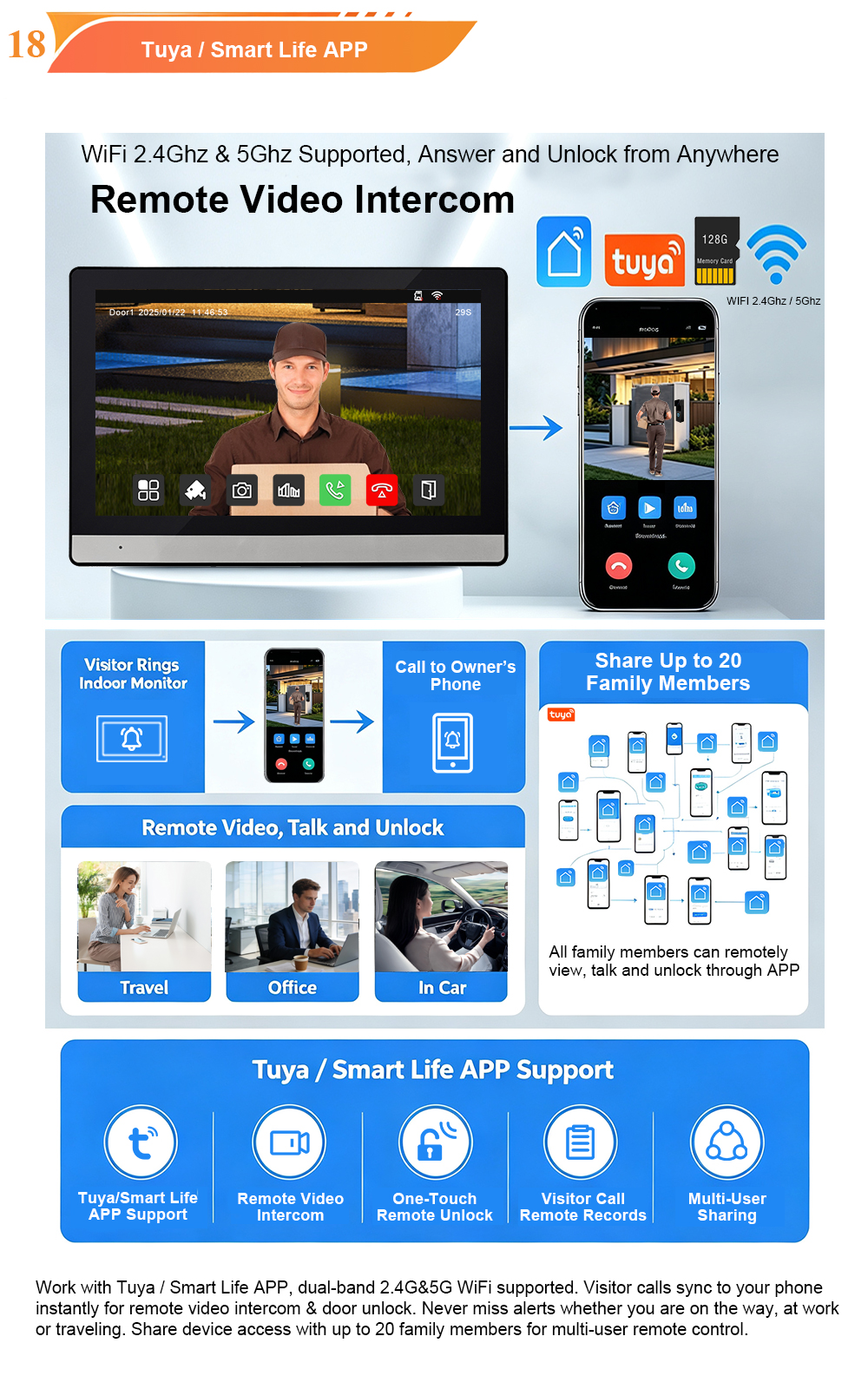
A step-by-step guide to pairing your Tuya-compatible wireless video door phone with the Tuya Smart or Smart Life app — enabling video calling, remote monitoring, and door unlocking from your smartphone, anywhere in the world.
Wireless video intercoms have transformed home and building security. No longer bound by complex wiring, these systems can be installed quickly and connected to your home Wi-Fi network, giving you complete control from your smartphone. At the heart of this smart experience is the Alle Interaktionen können auch aus der Ferne über die — one of the world’s most popular IoT platforms, trusted by millions of users and thousands of device manufacturers.
If you’ve recently purchased a FARHD wireless video intercom, or you’re a distributor looking to understand how our Tuya-compatible systems work, this guide is for you. We’ll walk you through the entire connection process, explain what you can do once connected, and share troubleshooting tips to ensure a smooth setup.
Why Tuya Smart App?
Tuya is a global leader in IoT (Internet of Things) technology, providing a unified platform for smart devices across many categories. For video intercoms, the Tuya Smart App (or its sibling, Smart Life) offers several key advantages:
- Unified control – Manage your video door phone alongside other Tuya-compatible smart devices (lights, plugs, cameras, etc.) from a single app.
- Fernzugriff – See and speak with visitors, and unlock doors, from anywhere with an internet connection.
- Family sharing – Share access with up to 20 family members, each with their own login.
- Bewegungsalarme – Receive instant push notifications when someone approaches your door.
- Cloud- und lokaler Speicher – Options for both, with local storage on microSD card for privacy.
- Mehrsprachiger Support – Available in English, Spanish, French, Arabic, Russian, and many more.
For manufacturers and distributors, Tuya compatibility adds significant value to a product. It means your customers get a polished, familiar app experience without the need for custom app development.
What You Need Before You Start
Before connecting your wireless video intercom to the Tuya app, make sure you have the following:
- A Tuya-compatible wireless video intercom – FARHD wireless intercoms are Tuya-compatible. Look for the Tuya logo or mention in the product documentation.
- A smartphone – iOS or Android, with the Tuya Smart or Smart Life app installed.
- A 2.4GHz Wi-Fi network – Tuya devices typically do not support 5GHz Wi-Fi networks. Ensure your phone is connected to the 2.4GHz band during setup.
- Strom – The indoor monitor should be powered on and the outdoor unit should have power (battery charged or connected to power).
- The device’s pairing code or QR code – Usually found on the device or in the manual.
Das ist wichtig: During setup, your phone must be connected to the same 2.4GHz Wi-Fi network you want the device to use.
Step-by-Step: Connecting Your Wireless Video Intercom to Tuya Smart App
The following steps are based on the standard Tuya pairing process. While the exact interface may vary slightly depending on your app version and device model, the general flow is the same.
Step 1: Download and Register
- Laden Sie die Tuya Smart oder Kluges Leben app from the Apple App Store or Google Play Store.
- Open the app and create an account using your email address or phone number.
- Log in to your account.
Step 2: Power On Your Device
- Ensure your wireless video intercom is powered on. The indoor monitor should be connected to power, and the outdoor unit should have a charged battery or be connected to power.
- If your device has a pairing button or reset button, locate it (usually on the indoor monitor or outdoor unit).
Step 3: Enter Pairing Mode
- On the indoor monitor, navigate to the network settings or pairing menu. If you’re not sure how, refer to the user manual. Typically, there is an option like “Wi-Fi Setup” or “Pair with App.”
- Alternatively, some devices enter pairing mode automatically when first powered on. The indicator light may flash rapidly to indicate pairing mode.
Step 4: Add Device in the App
- Open the Tuya Smart or Smart Life app.
- Tap the „+“-Symbol icon in the top right corner (or “Add Device”).
- The app will automatically search for nearby devices. If your device is in pairing mode, it should appear in the list. Tap on it.
- If the device does not appear automatically, select “Add Manually” and choose the appropriate category (e.g., “Security & Sensors” > “Video Doorbell” or “Smart Camera”). Then select your device model or “Other.”
Schritt 5: Mit Wi-Fi verbinden
- The app will prompt you to enter your Wi-Fi network password. Ensure you are connected to a 2.4GHz network.
- Confirm the password and tap “Next” or “Confirm.”
- The app will now attempt to connect your device to the Wi-Fi network. This may take a minute or two.
- During this process, the device may flash its indicator light or emit a sound. Wait for the app to confirm successful connection.
Step 6: Name Your Device
- Once connected, the app will ask you to name your device (e.g., “Front Door Intercom” or “Villa Gate”).
- You can also assign it to a room (e.g., “Living Room,” “Entrance”).
Step 7: Complete Setup
- The app may offer additional settings, such as motion detection sensitivity, notification preferences, and storage options.
- Configure these according to your preferences.
- Tap “Done” or “Finish.”
Your wireless video intercom is now connected to the Tuya Smart App.
What You Can Do After Connecting
Once your device is successfully paired, you unlock a range of smart features.
📹 Video Calling
- When a visitor presses the call button on the outdoor unit, your phone rings (if the app is running in the background) or receives a push notification.
- Answer the call to see live video from the outdoor camera and speak with the visitor using two-way audio.
🔓 Remote Unlocking
- During a call or from the live view screen, tap the unlock button to release the door lock (if connected).
- You can also unlock from the device list without an active call.
👁️ Live Monitoring
- Tap on the device in the app to view the live camera feed at any time.
- Switch between multiple cameras if you have more than one connected.
🔔 Motion Detection Alerts
- If enabled, the system will send push notifications when motion is detected near the door.
- Notifications often include a snapshot, so you can see what triggered the alert.
📼 Playback and Storage
- Recorded videos and snapshots can be stored on a microSD card (up to 128GB) in the indoor monitor.
- Some models also support cloud storage (subscription may apply).
- Review recordings directly in the app.
👨👩👧👦 Family Sharing
- Go to “Me” > “Home Management” > “Add Member” to invite family members.
- They can receive calls, view live video, and unlock the door from their own phones.
- You can set permissions for each member.
Behebung häufiger Probleme
If you encounter problems during setup, here are some common solutions.
| Ausgabe | Possible Solution |
|---|---|
| Device not found during pairing | Ensure the device is in pairing mode (indicator flashing). Move the device closer to your router. Check that your phone is on a 2.4GHz Wi-Fi network. |
| Wi-Fi connection failed | Double-check the Wi-Fi password. Ensure the network is 2.4GHz, not 5GHz. Restart the router and the device, then try again. |
| App shows device offline | Check that the device is powered on and connected to Wi-Fi. Check your internet connection. Restart the device. |
| No notifications | Ensure notifications are enabled for the Tuya app in your phone settings. Check the app’s notification settings for the device. |
| Video lag or poor quality | Check your Wi-Fi signal strength. Move the device or router for better coverage. Reduce video quality in settings if available. |
Why FARHD Wireless Video Intercoms?
FARHD has been designing and manufacturing video intercom systems since 1998, with over 28 years of industry experience. Our wireless video intercoms are engineered for reliability, performance, and seamless Tuya integration.
Key features of FARHD wireless intercoms:
- Tuya Smart App compatible – Full remote access and control.
- 1080P HD camera – Clear video with wide-angle lens and infrared night vision.
- Zwei-Wege-Audio – Full-duplex with echo cancellation.
- Bewegungserkennung – Instant alerts to your phone.
- Lokale Speicherung – microSD card up to 128GB.
- Lange Akkulaufzeit – Some models support solar charging.
- Weatherproof outdoor unit – IP65 rated for outdoor durability.
- OEM/ODM ready – Custom branding, packaging, and software.
Whether you are a homeowner looking for a smart doorbell or a distributor seeking a reliable Tuya-compatible product line, FARHD delivers.
Watch the Video
For a visual walkthrough of the connection process, watch our video: How to connect a Wireless Video Intercom to Tuya Smart App. The video demonstrates each step on a real device, so you can follow along easily.
Fazit
Connecting your wireless video intercom to the Tuya Smart App is a straightforward process that unlocks a world of smart security features. With remote video calling, live monitoring, motion alerts, and remote unlocking, you gain complete control of your entrance from anywhere.
At FARHD, we make this process as smooth as possible. Our Tuya-compatible wireless intercoms are designed for easy setup and reliable performance. If you have any questions or need assistance, our support team is ready to help.
Ready to upgrade your entrance security?
📩 Contact us for catalog, pricing, or to request a sample.
🌐 Website: www.farhd.com
📧 Email: [email protected]
FARHD – Video Intercom Manufacturer Since 1998.
#WirelessVideoIntercom #TuyaSmart #VideoDoorPhone #SmartHomeSecurity #OEM #ODM #FARHD
Das könnte Sie auch interessieren
-
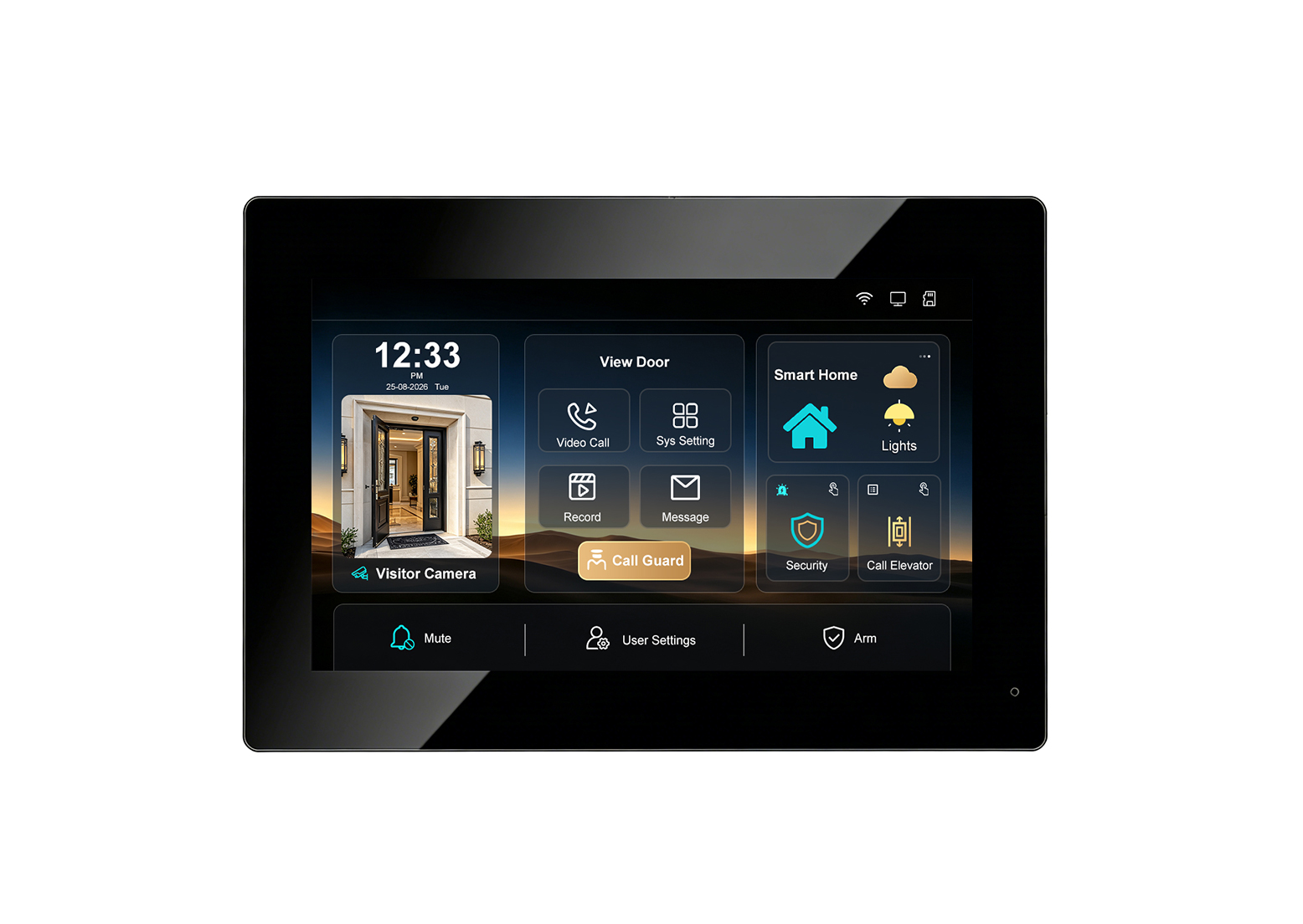
New UI Upgrade! FARHD Indoor Monitor for Video Intercom System – Smarter Control, Seamless Integration
Introducing the upgraded FARHD indoor monitor: a smarter, more intuitive hub for your video intercom system. With a refreshed user interface, RS-485 smart home integration, elevator control linkage, security alarm support, Tuya app remote access, up to 128GB SD card storage, and a multi-language UI, this monitor is designed to elevate the entry experience for…
-
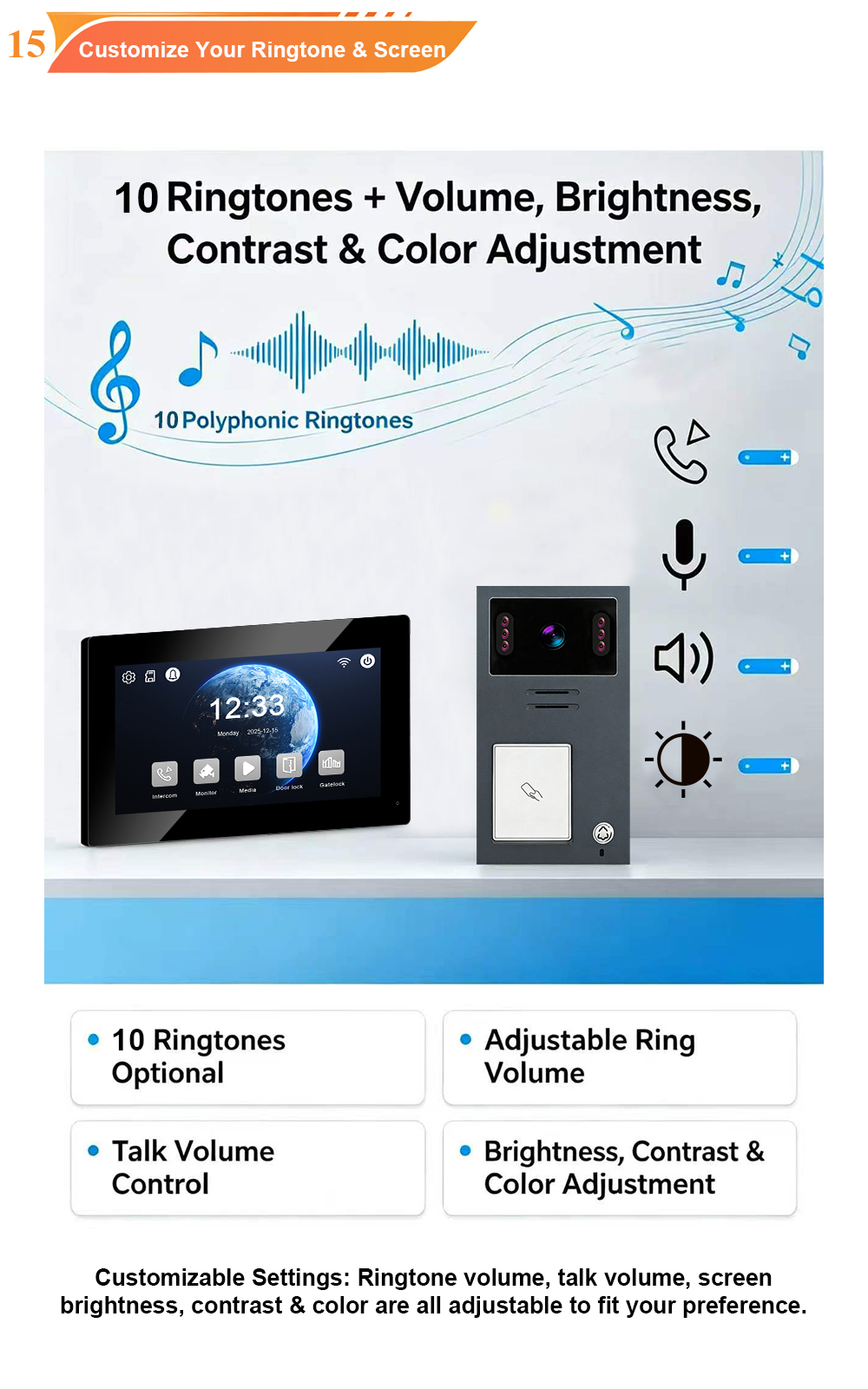
Aluminum Casing Call Panel with Card Unlock & 2-Wire Connection: A Premium Video Intercom Solution with 7-Inch Indoor Monitor
When you combine the durability of an aluminum casing, the convenience of card unlock, the simplicity of 2-wire installation, and the clarity of a 7-inch indoor monitor, you get a video intercom system that excels in both performance and aesthetics. FARHD’s 2-Wire Video Door Phone with aluminum call panel is designed for villas, apartments, and…
-
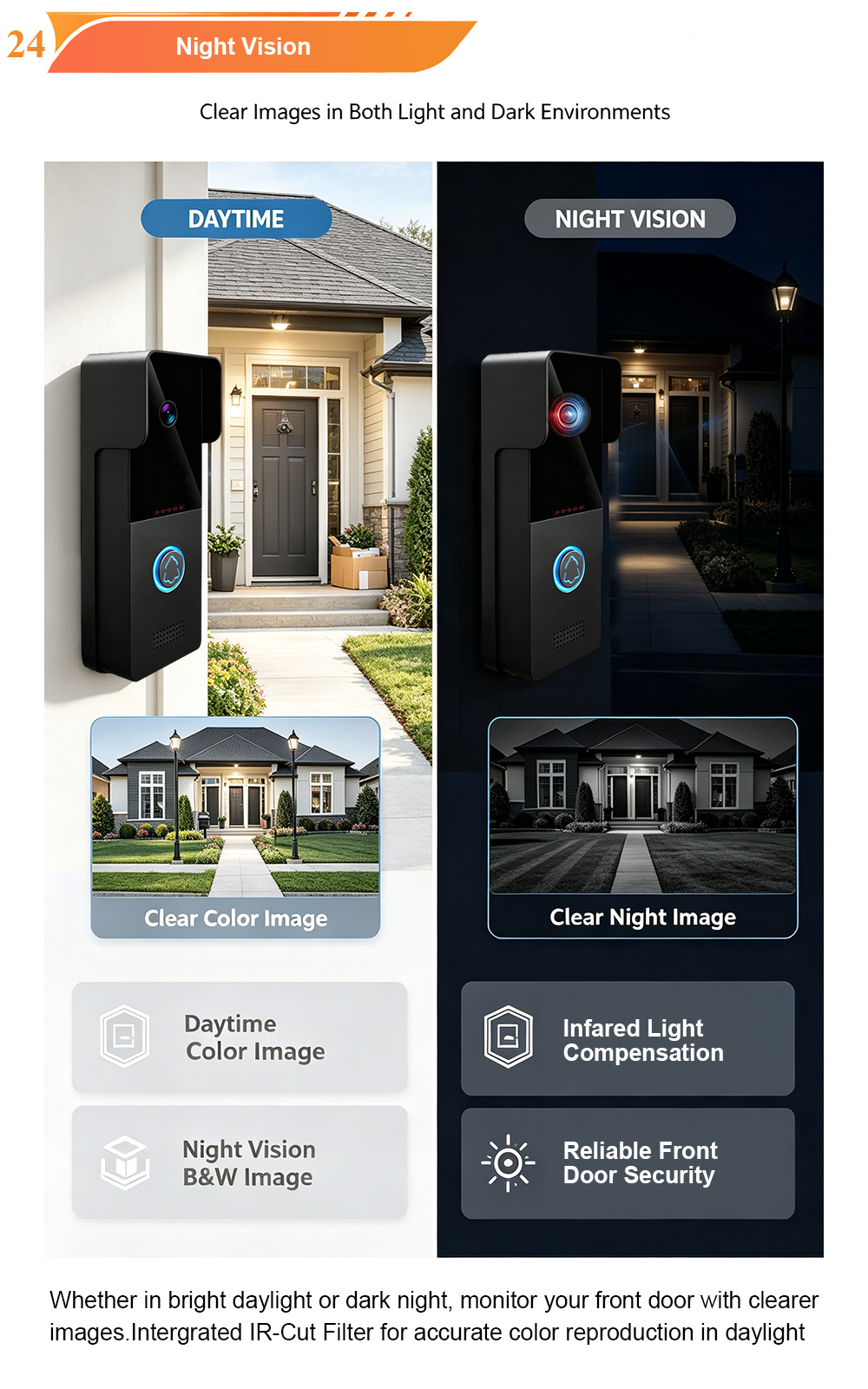
Inside FARHD Factory | V1-IP Video Intercom: Where Precision Meets Reliability
Take a look inside our factory as the V1-IP outdoor IP video intercom is assembled, calibrated, and tested. From 1080P HD imaging and PoE connectivity to IP65 weatherproofing and wide-temperature operation, every unit is built to perform in the real world. At FARHD, we believe that a great product is not just designed—it is built….
-
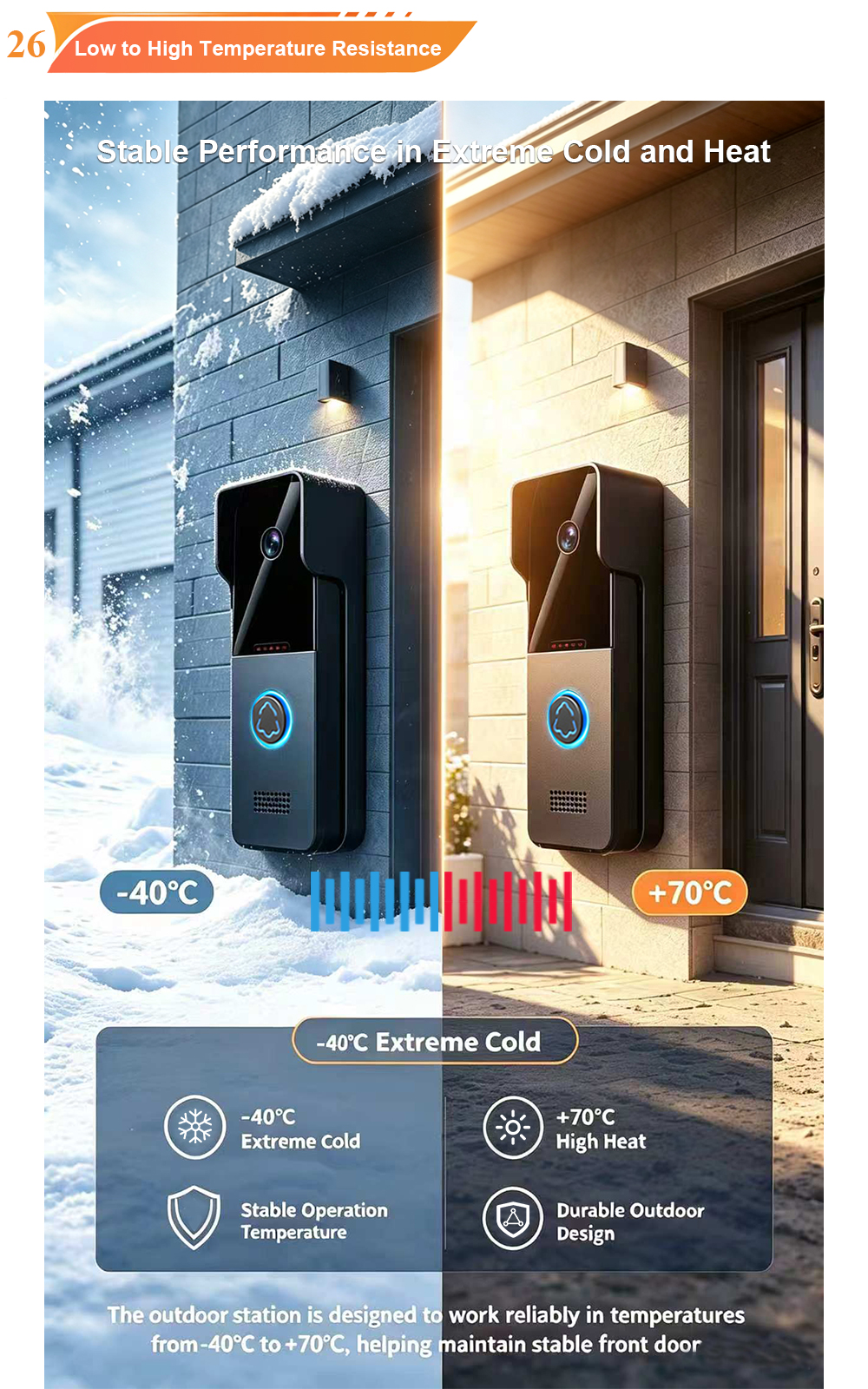
High-Temperature Test: How FARHD Video Intercoms Stay Reliable in Extreme Heat
Inside the heat chamber, it keeps working — normal display, no black screen, no shutdown. Real quality isn’t just about lab data; it’s about staying reliable in extreme conditions. A video intercom that withstands high heat — because your door security can’t take a day off. When you install a video intercom at a building…