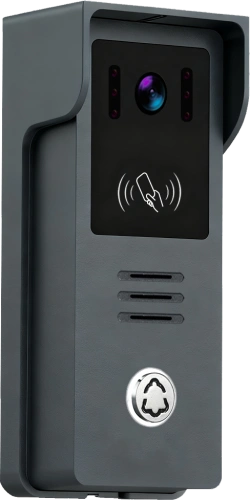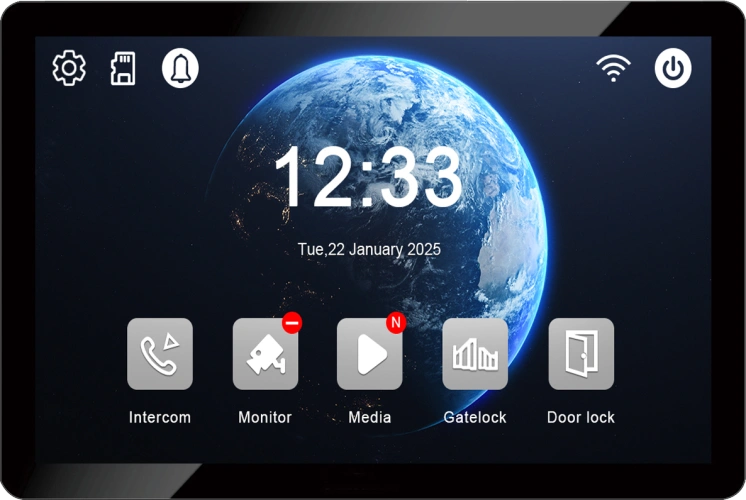
Face ID, Card and Personal Password Registration in 2-Wire Apartment Outdoor Station
octobre 12, 2026
Partager cet article
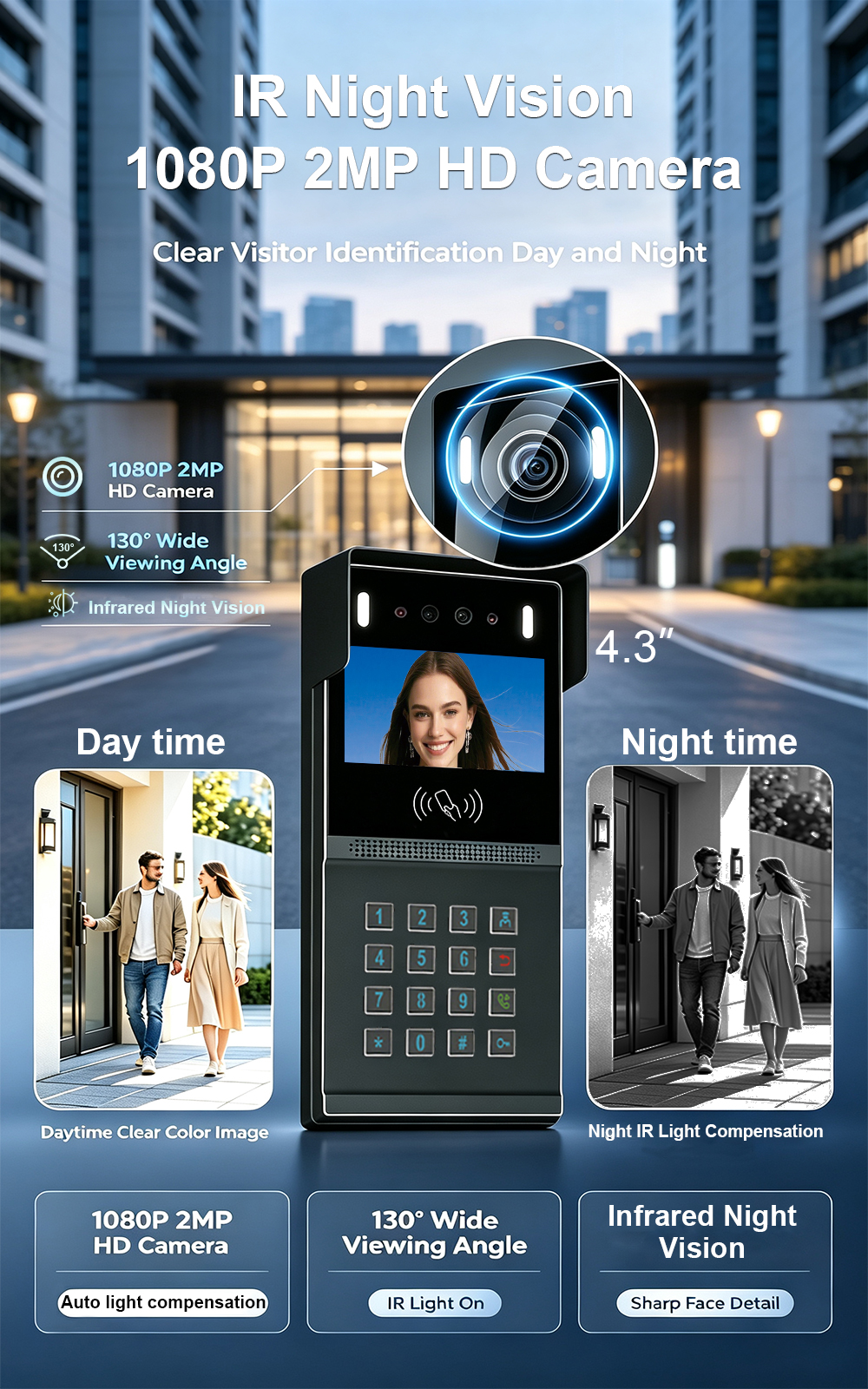
A complete step-by-step guide for installers and property managers on registering Face ID, RFID cards, and personal passwords on the FARHD 2-wire apartment outdoor station. Whether you are setting up a new building or adding new residents, this guide covers everything you need to know.
In modern apartment buildings, residents expect multiple ways to enter: face recognition for hands-free convenience, RFID cards for daily use, and personal passwords for backup or temporary access. The FARHD 2-wire apartment outdoor station supports all three, with flexible registration methods accessible via the indoor monitor or management software.
This guide explains how to register each credential type, best practices for security, and troubleshooting tips.
Before You Begin: What You Need
To register credentials on the FARHD 2-wire apartment outdoor station, ensure you have:
- The outdoor station – installed and powered.
- The indoor monitor – connected and powered (for menu-based registration).
- Admin password – factory default is typically
666666. Change it after first login. - Credentials to register – face, RFID card, or password.
- Resident room number – each credential must be associated with a specific apartment.
Important : The outdoor station must be connected to the indoor monitor or 2-wire switch. Registration is done through the indoor monitor or management software, not directly on the outdoor station (unless it has a touchscreen interface).
Method 1: Registering Face ID
Face recognition allows residents to enter without touching any device—ideal for hands-free access. The FARHD system supports up to 40,000 faces, suitable for large apartment communities.
Step-by-Step: Register Face ID via Indoor Monitor
- Access the settings menu – On the indoor monitor, tap the settings icon.
- Select “Face Management” – This may also be labelled “Face Registration” or “User Management.”
- Enter admin password – Default is
666666. - Tap “Add Face” – The system enters face capture mode.
- Select the room number – Choose the apartment this face belongs to.
- Position the resident – Ask them to look directly at the outdoor station camera. Ensure good lighting and remove hats or sunglasses.
- Capture the face – The system will guide the resident to move slightly or blink for liveness detection. Capture 2–3 angles if required.
- Confirm and save – Review the captured image and tap “Save.”
- Test – Have the resident approach the outdoor station. The door should unlock automatically.
Best Practices for Face Registration
- Lighting: Register in even, natural light. Avoid strong backlight or shadows.
- Distance: Stand 0.5–1 metre from the camera.
- Expression: Neutral expression, eyes open.
- Accessories: Remove sunglasses, masks, or hats that obscure facial features.
- Multiple angles: Some systems allow multiple face captures per user for better recognition.
Note : Face recognition performance may vary with significant changes in appearance (e.g., beard growth, major weight loss). Re-register if recognition fails consistently.
Method 2: Registering RFID/IC Cards
RFID cards are the most common credential for daily access. They are fast, durable, and easy for residents of all ages.
Step-by-Step: Register Cards via Indoor Monitor
- Access the settings menu – On the indoor monitor, tap the settings icon.
- Select “Card Management” – Also labelled “RFID Management” or “Access Control.”
- Enter admin password – Default is
666666. - Tap “Add Card” – The system enters card-swiping mode.
- Select the room number – Choose the apartment this card belongs to.
- Present the card – Hold the card near the card reader on the outdoor station. The system will beep or display a confirmation.
- Repeat for additional cards – You can add multiple cards for the same apartment (e.g., family members).
- Tap “Return” – Exit the menu and verify the card appears in the list.
Alternative: Register Cards Using a Master Card
Some FARHD systems include a Master Card for quick on-site registration.
- Present the “ADD” Master Card to the outdoor reader. The system enters addition mode.
- Present each new card you wish to add.
- Present the Master Card again to exit.
This method is faster when adding many cards at once.
Best Practices for Card Registration
- Use IC cards (13.56MHz) – More secure than older 125kHz ID cards.
- Label cards – Mark each card with the resident’s room number.
- Test before issuing – Verify the card unlocks the door before handing it to a resident.
- Keep a card inventory – Track which cards are issued to which apartment.
- Delete lost cards immediately – Use the “Delete Card” function to revoke access.
Method 3: Registering Personal Passwords
Personal passwords provide a backup access method when a resident forgets their card or face recognition fails. They are also useful for temporary visitors or service providers.
Step-by-Step: Register Passwords via Indoor Monitor
- Access the settings menu – On the indoor monitor, tap the settings icon.
- Select “Password Management” – Also labelled “PIN Management” or “Access Codes.”
- Enter admin password – Default is
666666. - Tap “Add Password” – The system prompts you to enter a new password.
- Select the room number – Choose the apartment this password belongs to.
- Enter the password – Typically 4–8 digits. Confirm the password.
- Assign a name or label – Some systems allow you to label the password (e.g., “Resident,” “Cleaner,” “Guest”).
- Save and test – Exit the menu and test the password on the outdoor station keypad.
Best Practices for Password Management
- Use unique passwords – Avoid common sequences like 1234 or 0000.
- Change regularly – For temporary passwords, set an expiration date if supported.
- Limit sharing – Passwords should be personal; avoid sharing among multiple residents.
- Delete when no longer needed – Remove temporary passwords after use.
- Combine with other methods – For higher security, require password + card for access.
Registration via Management Software (for Larger Buildings)
For buildings with many apartments, manual registration via the indoor monitor can be time-consuming. FARHD offers management software that allows bulk registration:
- Connect the system to a PC – Via network or USB.
- Import resident data – Upload a CSV file with room numbers, names, and credential IDs.
- Assign credentials – Map faces, cards, and passwords to each apartment.
- Download to the system – Transfer the configuration to the outdoor station and indoor monitors.
- Verify – Test a sample of credentials to ensure correct assignment.
This method is ideal for property managers handling hundreds or thousands of residents.
Managing Multiple Credentials per Apartment
Residents may need multiple credentials (e.g., two family members, one card each). The FARHD system supports:
- Multiple faces per apartment – Register each family member.
- Multiple cards per apartment – Issue cards to family members, caregivers, or regular visitors.
- Multiple passwords per apartment – Create temporary passwords for guests or service providers.
Each credential is linked to the apartment’s room number. When a resident uses their face, card, or password, the system grants access and may also trigger elevator control if integrated.
Troubleshooting Common Registration Issues
| Enjeu | Cause possible | Solution |
|---|---|---|
| Face not recognised | Poor lighting | Re-register in better light |
| Face changed | Re-register with current appearance | |
| Camera dirty | Clean the camera lens | |
| Card not reading | Card not registered | Register the card via indoor monitor |
| Card reader dirty | Clean the reader area | |
| Wrong card type | Ensure card frequency matches reader (IC 13.56MHz or ID 125kHz) | |
| Password not working | Incorrect password | Re-enter password or reset via indoor monitor |
| Password not saved | Re-register password | |
| Cannot access settings | Forgotten admin password | Default is 666666; reset if changed |
| Credential not assigned to room | Wrong room number | Re-assign credential to correct apartment |
Security Best Practices for Credential Management
- Change the default admin password – Prevent unauthorised access to registration menus.
- Use IC cards over ID cards – IC cards offer better encryption and cloning resistance.
- Enable liveness detection for face recognition – Prevents spoofing with photos or videos.
- Regularly audit credentials – Remove unused or expired credentials.
- Limit admin access – Only trusted property managers should have registration privileges.
- Keep firmware updated – Security patches and new features are released periodically.
- Back up configurations – Export settings after registration in case of system reset.
Why Choose FARHD for Your 2-Wire Apartment System?
FARHD has been designing and manufacturing video intercom systems since 1998, with over 28 years of industry experience. Our 2-wire apartment systems are trusted in over 100 countries for their reliability, ease of installation, and advanced credential management.
Key features:
- Reconnaissance faciale – Up to 40,000 faces.
- RFID/IC card – 13.56MHz and 125kHz support.
- Password – 4–8 digit PINs.
- Tuya Smart Life app – Remote unlock and management.
- Évolutif – Up to 9,999 apartments.
- Résistant aux intempéries – IP65 outdoor stations, -40°C to +70°C.
- OEM/ODM/SKD – Custom branding, packaging, and software.
- No MOQ – Start with a sample; scale as you grow.
Our products are installed in thousands of apartments, villas, and residential projects worldwide.
Ready to Configure Your Apartment Intercom?
Whether you are setting up a new building or adding new residents, FARHD’s 2-wire apartment outdoor station makes credential registration simple and secure. With support for Face ID, RFID cards, and personal passwords, you can offer residents the convenience and flexibility they expect.
Contact us for catalog, pricing, or to request a sample.
📩 Email: [email protected]
🌐 Website: www.farhd.com
📱 WhatsApp: +86 188 2370 9809 / +86 199 2545 1918
FARHD – Video Intercom Manufacturer Since 1998.
#FaceID #RFID #Password #2WireIntercom #ApartmentIntercom #AccessControl #VideoIntercom #FARHD #OEM #ODM #BuildingSecurity
Vous pourriez également être intéressé par
-
Configuring an 8-Button Outdoor Station with 8 Indoor Monitors via a 2-Wire Switch
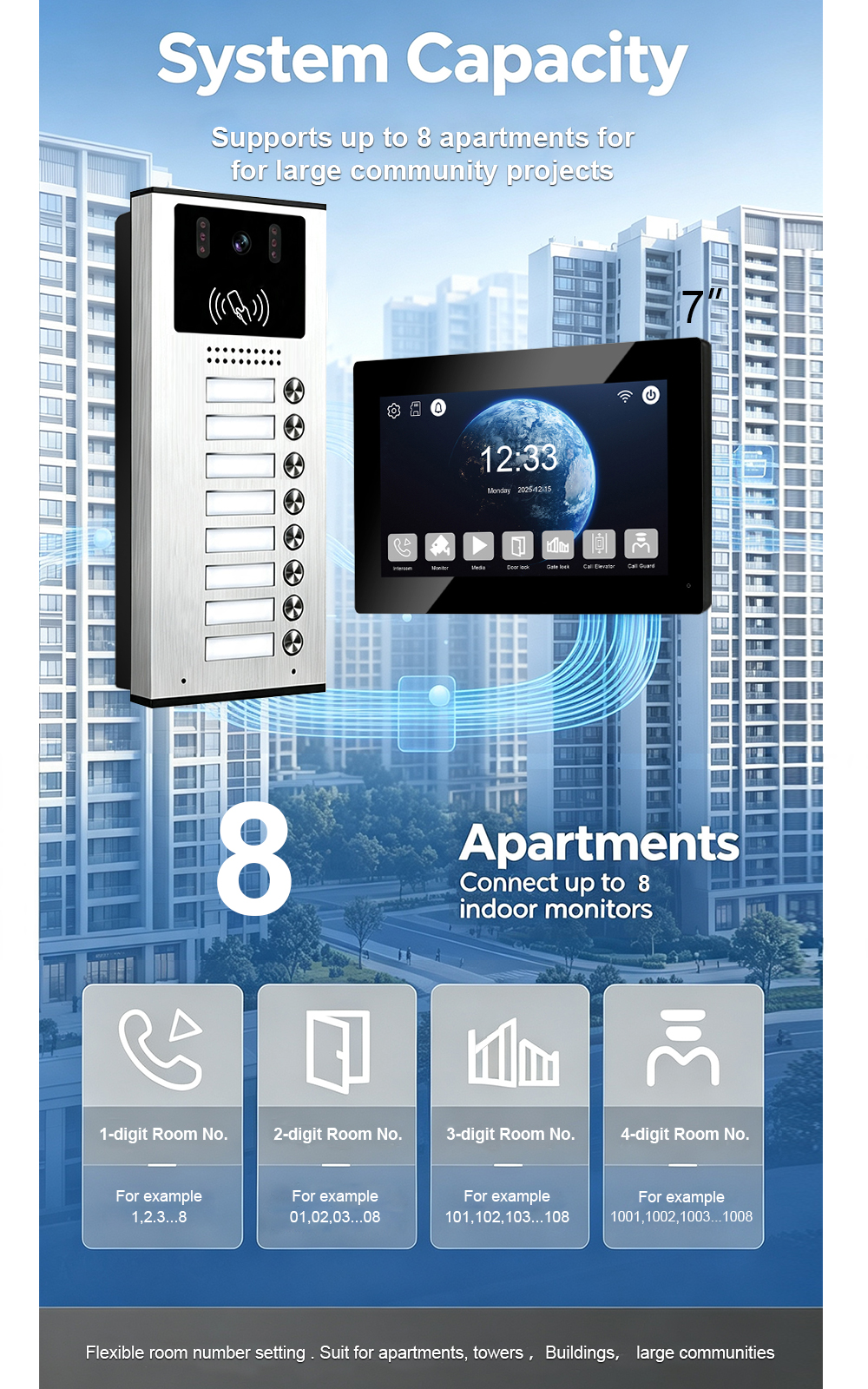
An 8-button outdoor station paired with eight indoor monitors is a practical configuration for small apartment buildings, multi-unit residential properties, and compact communities with up to eight units. Using a 2-wire switch simplifies power distribution and signal routing, while 2-wire non-polarity cabling keeps installation straightforward. This guide covers the components, wiring topology, room-number configuration, button…
-
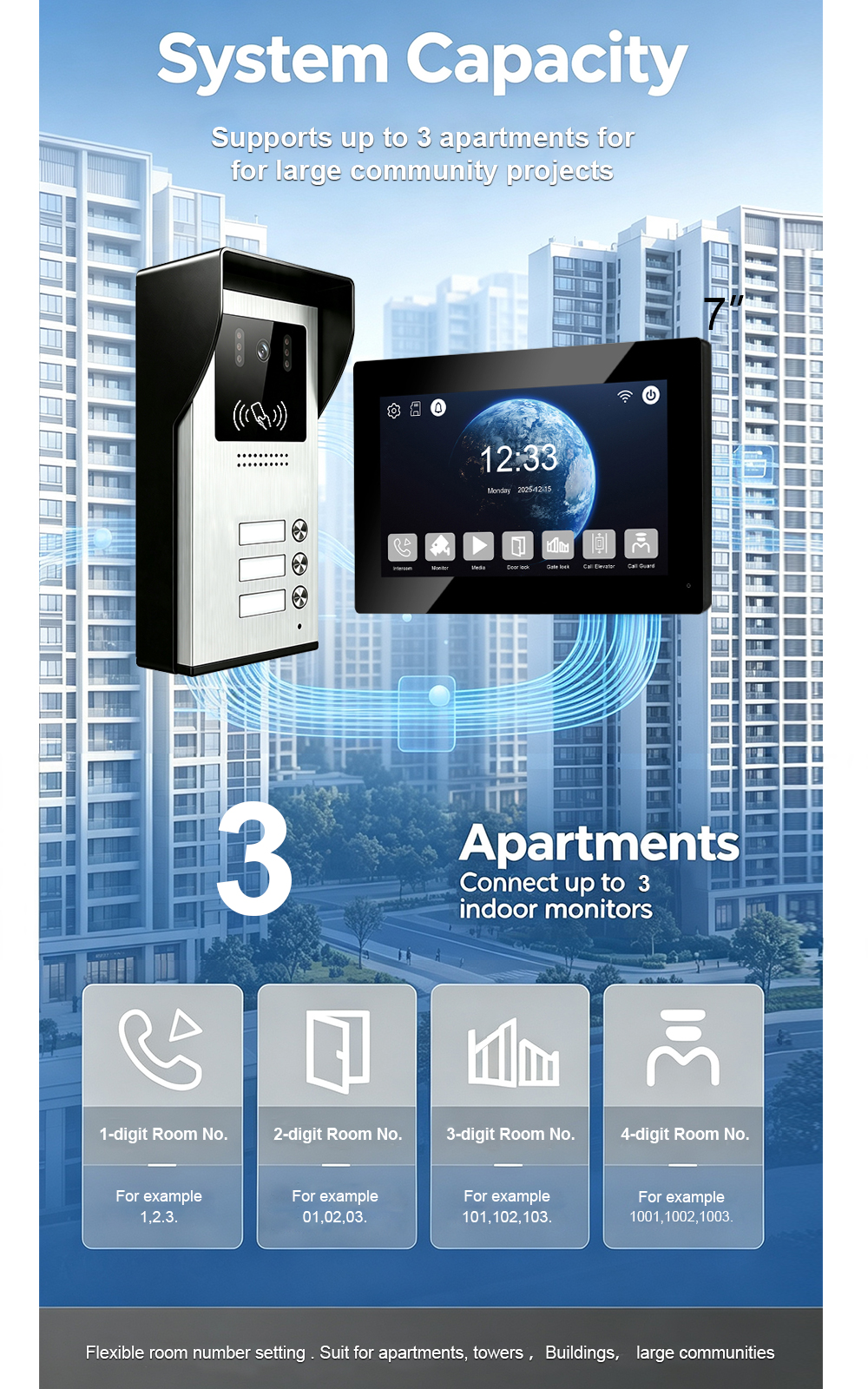
3-Button Outdoor Station Video Intercom with 3 Indoor Monitors: 2-Wire Connection via 2-Wire Switch
When you manage a small apartment building with three units, you need an intercom system that is simple, reliable, and easy to install. The FARHD 3-button outdoor station paired with three indoor monitors delivers exactly that—using a 2-wire connection through a 2-wire switch. No complex cabling, no network configuration, no Wi-Fi dropouts. Just clear video,…
-
Welcome to Visit FARHD Factory: A Building Intercom Original Manufacturer Since 1998
When you source building intercom systems, the most important question is not what the product does—it is who makes it and how. FARHD has been an original building intercom manufacturer since 1998. We welcome overseas clients to visit our factory in Shenzhen, see the real production line, test samples on site, and discuss cooperation face…
-
Factory Visit Journal: Welcoming Our Third Group of Overseas Clients Today
Today, FARHD welcomed our third wave of overseas clients to our Shenzhen source factory. They came to inspect our building intercom production lines, test video and audio intercom samples, review access control integration, and discuss their residential project requirements face to face. This is what a factory visit looks like at a true source manufacturer—and…