Configuring a 12-Button Outdoor Station with 12 Indoor Monitors via a 2-Wire Switch
Outubro 23, 2026
Partilhar este artigo
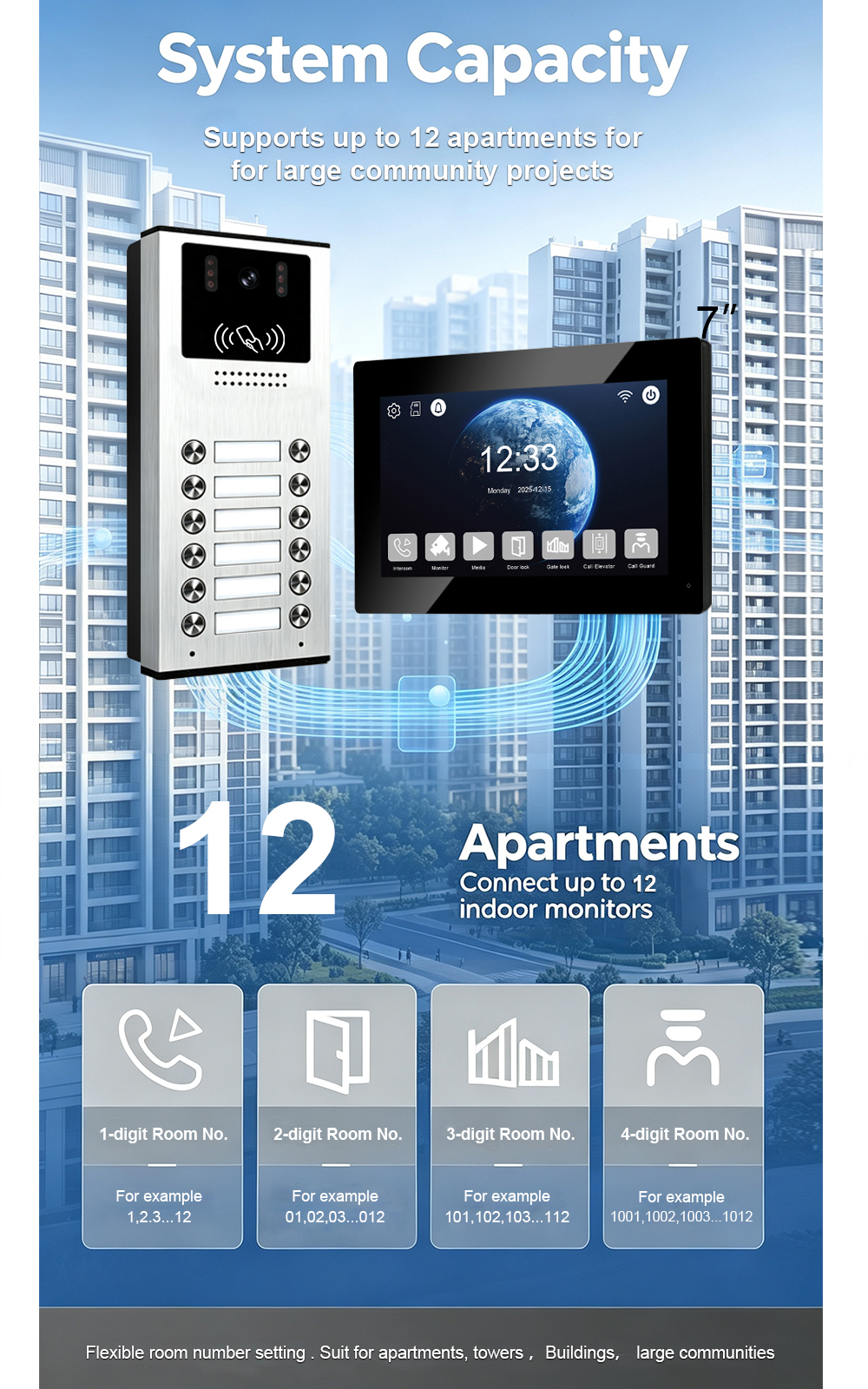
A 12-button outdoor station paired with twelve indoor monitors is a practical configuration for small apartment buildings, multi-unit residential properties, and compact communities with up to twelve units. The 2-wire switch centralizes power distribution and signal routing, while non-polarity 2-wire cabling keeps installation straightforward. This guide covers capacity planning, wiring topology, room-number configuration, button mapping, testing, and troubleshooting for a reliable 12-unit deployment.
The critical difference between a 3-unit or 8-unit installation and a 12-unit installation is switch capacity and power budget. Twelve monitors plus one outdoor station require more ports and more current than a standard small switch may provide. Getting the switch architecture right before pulling cable is the single most important step.
1. Capacity Check: The 2-Wire Switch Must Match the Load
A 12-unit system needs at least 12 monitor output ports plus 1 outdoor-station input—13 usable ports in total.
Do not assume an 8-port switch can be expanded indefinitely. Many 8-port 2-wire switches are configured as 6 monitor ports + 2 outdoor ports, or 8 monitor ports with no dedicated station input. For a 12-monitor system, the options are:
| Opção | What It Requires | Configuração recomendada |
|---|---|---|
| 16-port 2-wire switch | At least 12 monitor outputs + 1 station input | Cleanest solution; single distribution point |
| Two 8-port switches, cascaded | Correct station input and branch distribution | Confirm the switches support cascading and that addressing remains unique |
| 8-port switch plus distributor | Additional passive distributor for extra monitor branches | Confirm power budget and signal integrity across branches |
Power budget is the second check. A 15V 4A adapter provides 60W. Twelve monitors plus an outdoor station may exceed that if each monitor draws 5–8W. If the switch’s adapter is undersized, monitors may reboot, video may drop out, or the outdoor station may fail to boot. Use a higher-capacity central supply, or distribute the load across multiple switches with separate power supplies.
Rule: Do not exceed the switch manufacturer’s rated monitor count or total power output. If the datasheet says “up to 8 monitors,” a 12-monitor system requires a larger switch or a multi-switch architecture.
2. System Components
A typical 12-button, 12-monitor 2-wire kit includes:
| Componente | Role |
|---|---|
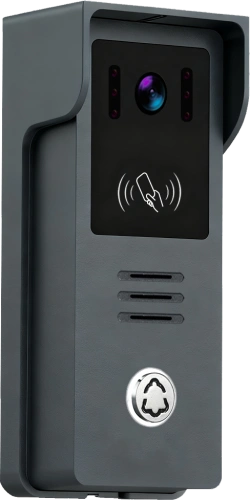
| 12-Button Outdoor Station | One call button per unit; camera, microphone, speaker, optional card reader |
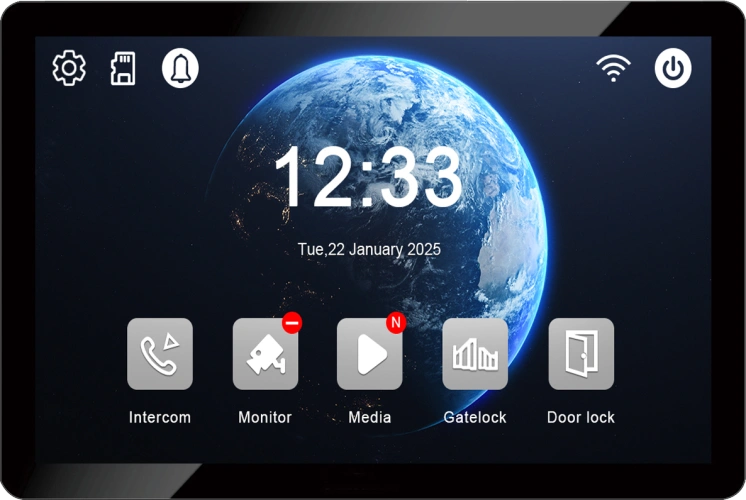
| 12 Indoor Monitors | One per apartment; answer calls, view video, unlock door |
| 2-Wire Switch / Distributor | Central power and signal distribution; fault isolation between monitor branches |
| Fonte de alimentação | 15V DC adapter or central supply matched to total load |
| 2-Core Cable | Non-polarity, ≥0.5mm², up to 100m per run |
| Electric Lock | Controlled by relay output; requires separate 12V DC power supply |
3. Wiring Topology: Star Wiring via 2-Wire Switch
For twelve indoor monitors, star wiring is strongly recommended.
text
[Outdoor Station] ── 2-wire ── [2-Wire Switch / Distributor]
                                      ├── 2-wire ── [Indoor Monitor 1]
                                      ├── 2-wire ── [Indoor Monitor 2]
                                      ├── 2-wire ── [Indoor Monitor 3]
                                      ├── 2-wire ── [Indoor Monitor 4]
                                      ├── 2-wire ── [Indoor Monitor 5]
                                      ├── 2-wire ── [Indoor Monitor 6]
                                      ├── 2-wire ── [Indoor Monitor 7]
                                      ├── 2-wire ── [Indoor Monitor 8]
                                      ├── 2-wire ── [Indoor Monitor 9]
                                      ├── 2-wire ── [Indoor Monitor 10]
                                      ├── 2-wire ── [Indoor Monitor 11]
                                      └── 2-wire ── [Indoor Monitor 12]
Advantages of star wiring:
- Fault isolation: a fault in one apartment does not affect the others.
- Easier room-number configuration and troubleshooting.
- Stable power distribution to each monitor.
- Scalable within the switch’s rated capacity.
Avoid daisy-chaining twelve monitors on a single bus. Long bus runs increase voltage drop and make fault isolation difficult. If a bus topology is unavoidable, confirm the manufacturer’s maximum device count and cable length for the specific model.
4. Step-by-Step Wiring Guide
Step 1: Mount the Outdoor Station
- Mount at 1.5–1.8 metres above ground, protected from direct rain and sunlight.
- Use the included rain cover and mounting bracket.
Step 2: Mount the Indoor Monitors
- Mount each monitor in a convenient indoor location.
- Recommended height: 1.2–1.4 metres.
- Keep monitors away from direct heat sources and strong Wi-Fi interference where possible.
Step 3: Run the 2-Wire Cables
- Use 2-core cable, ≥0.5mm².
- Keep each run under 100 metres. For runs over 50 metres, use 0.75mm² or 1.0mm² cable.
- Avoid running intercom cable parallel to AC power lines. Cross at right angles if unavoidable.
Step 4: Connect the Outdoor Station
- Connect the 2-wire cable to the outdoor station’s 2-wire terminals.
- Polarity does not matter on standard non-polarity 2-wire systems.
- If an electric lock is used, connect the lock control wires to the relay output (typically NO and COM). The relay is a dry contact and does not power the lock. A separate 12V DC lock power supply is required.
Step 5: Connect the 2-Wire Switch
- Connect the outdoor station cable to the switch’s outdoor-station input.
- Connect each indoor monitor cable to a dedicated monitor output port.
- Power the switch with the supplied adapter or central power supply.
- Verify total power capacity covers all twelve monitors plus the outdoor station.
Step 6: Connect the Indoor Monitors
- Connect each monitor’s 2-wire cable to its assigned switch output.
- Do not share a single output port between multiple monitors unless the manufacturer explicitly supports parallel connection on that port.
Step 7: Power On and Initial Test
- Power on the system.
- Press Button 1. Indoor Monitor 1 should ring.
- Repeat for Buttons 2–12 and Monitors 2–12.
- Test two-way audio, video, and unlock from each monitor.
5. Configuration: Room Numbers and Button Mapping
After wiring, configure the system so that each button calls the correct apartment.
Step 1: Assign Unique Room Numbers to Each Indoor Monitor
Via indoor monitor menu:
- Enter the Settings menu.
- Selecione Room Number ou Address Setting.
- Enter the apartment number (e.g., 101–112, or 101, 102, 201, 202, etc.).
- Save and exit.
- Repeat for all twelve monitors.
Via 2-wire switch or management software:
- For larger systems, use the switch’s web interface or management software to assign room numbers in bulk.
- Confirm that every monitor has a unique address before proceeding.
Importante: Duplicate room numbers will cause multiple monitors to ring at the same time. Always verify uniqueness.
Step 2: Map Outdoor Station Buttons to Apartments
For a 12-button station, each button must be associated with a specific room number.
Default mapping: Many systems default to Button 1 = Unit 1, Button 2 = Unit 2, and so on.
Custom mapping: If the apartment numbering is not sequential, configure the button-to-room mapping.
Configuration methods:
- Indoor monitor menu: Some systems allow button mapping from the monitor settings.
- DIP switches or jumpers: Some outdoor stations use physical switches to set button addresses.
- Management software: Use the manufacturer’s software to assign each button to a room number.
Example mapping:
| Botão | Room Number |
|---|---|
| 1 | 101 |
| 2 | 102 |
| 3 | 201 |
| 4 | 202 |
| 5 | 301 |
| 6 | 302 |
| 7 | 401 |
| 8 | 402 |
| 9 | 501 |
| 10 | 502 |
| 11 | 601 |
| 12 | 602 |
Label each button with the resident’s name or room number for easy identification.
Step 3: Configure System Settings
- Unlock duration: Set the relay release time, typically 3–10 seconds.
- Ringtone volume: Adjust each monitor’s ringtone volume.
- Video settings: Adjust brightness, contrast, and night vision if available.
- Language: Select the preferred language for the UI.
Step 4: Optional App Pairing (Tuya / Smart Life)
If the indoor monitors support Wi-Fi and Tuya Smart Life:
- Connect the monitor to a 2.wi-Fi de 4 GHz network.
- Download the Tuya Smart or Smart Life app.
- Create an account and tap “Add Device.”
- Follow the pairing instructions.
- Assign the device to a room and name it (e.g., “Apartment 101”).
- Test remote answering, live view, and unlock.
Nota: Not all 2-wire systems support app integration. Confirm the model specification before relying on remote access.
6. Testing and Commissioning
After configuration, test every button and every monitor.
| Teste | What to Verify |
|---|---|
| Button-to-monitor mapping | Each button rings only its assigned monitor |
| Áudio bidirecional | Clear conversation, no echo or dropouts |
| Qualidade do vídeo | Clear image, correct viewing angle, night vision activates |
| Unlock function | Door releases reliably; relay click audible |
| Monitor power stability | All twelve monitors power on and remain stable without rebooting |
| Funções do aplicativo | Remote answer, live view, and unlock work if supported |
If a button rings the wrong monitor, the button mapping or room number is incorrect. If multiple monitors ring at once, check for duplicate room numbers. If monitors reboot intermittently, check the switch power capacity and cable voltage drop.
7. Troubleshooting Common Issues
| Questão | Causa possível | Solução |
|---|---|---|
| One monitor does not ring | Wrong room number | Reconfigure room number |
| Loose 2-wire connection | Re-seat terminals at switch and monitor | |
| Multiple monitors ring at once | Duplicate room numbers | Assign unique numbers to each monitor |
| Button rings wrong monitor | Incorrect button mapping | Reconfigure button-to-room mapping |
| No video | Cable fault or loose connector | Check continuity and terminal tightness |
| No audio | Volume muted or wiring issue | Check volume settings and audio connections |
| Unlock fails | Lock power missing or relay miswired | Verify lock power supply and NO/COM wiring |
| Monitors reboot intermittently | Insufficient power at switch | Check switch power capacity and cable voltage drop |
| App cannot connect | Wi-Fi on 5GHz or weak signal | Use 2.4GHz network; improve Wi-Fi coverage |
8. Best Practices for 12-Unit 2-Wire Systems
- Confirm switch capacity before installation. Count twelve monitor ports plus one outdoor-station input; do not exceed the switch’s rated power or device count.
- Calculate total power. If the standard adapter is 15V 4A (60W), verify that twelve monitors plus the outdoor station do not exceed that budget. Use a higher-capacity supply or multiple switches with separate supplies if needed.
- Use quality cable. ≥0.5mm² copper; use thicker gauge for runs over 50 metres.
- Keep runs under 100 metres. For longer distances, use a repeater or thicker cable.
- Label both ends of every cable. Use room numbers or port numbers for clarity.
- Test each apartment after configuration. Verify call, audio, video, and unlock before final handover.
- Seal outdoor connections. Use waterproof gel caps or silicone at the outdoor station.
- Document the port map and room numbers. This reduces future maintenance time.
- Update firmware after installation. Check for the latest stable release.
9. Why Choose FARHD for Multi-Unit 2-Wire Systems?
FARHD has been designing and manufacturing video intercom systems since 1998, with over 28 years of industry experience. Our 2-wire systems are trusted in over 100 countries for reliability, ease of installation, and flexible configuration.
Key advantages:
- Source factory – factory-direct pricing, full quality control.
- 2-wire simplicity – non-polarity wiring, reuses existing cabling, up to 100m per run.
- Multi-button outdoor stations – 4, 8, 10, 12, 14, and 16-button configurations.
- 2-wire switches and distributors – stable power distribution and fault isolation.
- IP65 outdoor stations – rated for -40°C to +70°C.
- OEM/ODM/SKD – custom branding, packaging, and software.
- No MOQ – start with a sample; scale as you grow.
- Certificações globais – CE, FCC, RoHS, IP65, EMC.
Our products are installed in thousands of apartments, villas, and residential projects worldwide.
10. Frequently Asked Questions
Q: Can one 2-wire switch support twelve indoor monitors and one outdoor station?
A: Only if the switch has at least thirteen usable ports and sufficient power capacity. Many 8-port switches are insufficient; use a 16-port switch or cascade two switches with separate power supplies.
Q: How do I map twelve buttons to twelve apartments?
A: Assign a unique room number to each indoor monitor, then configure the outdoor station’s button-to-room mapping through the monitor menu, DIP switches, or management software.
Q: What happens if two monitors have the same room number?
A: Both will ring when that room number is called. Always assign unique room numbers.
Q: Does the system work without internet?
A: Yes. Basic calling, video, audio, and unlock functions work without internet. Internet is only required for remote app access.
Q: What is the maximum cable length per monitor?
A: Up to 100 metres with ≥0.5mm² cable. For longer runs, use thicker gauge or a repeater.
Q: Is the outdoor station weatherproof?
A: Yes, FARHD outdoor stations are typically IP65 rated and operate from -40°C to +70°C.
Contact Us for Catalog, Pricing, and Samples
The FARHD 12-button outdoor station with twelve indoor monitors and a 2-wire switch is a practical, reliable solution for small apartment buildings and multi-unit residential properties. With straightforward wiring, flexible room-number configuration, and stable performance, it delivers secure and convenient entry for every unit.
Contact us today for catalog, pricing, or to request a sample.
📩 Email: [email protected]
🌐 Website: www.farhd.com
Permite a comunicação sem abrir a porta. WhatsApp: +86 188 2370 9809 / +86 199 2545 1918
FARHD – Video Intercom Manufacturer Since 1998.
#12ButtonIntercom #2WireIntercom #ApartmentIntercom #VideoIntercom #2WireSwitch #MultiUnitIntercom #WiringGuide #Configuration #FARHD #OEM #ODM #BuildingSecurity
Também pode interessar-lhe
-
Configuring an 8-Button Outdoor Station with 8 Indoor Monitors via a 2-Wire Switch
An 8-button outdoor station paired with eight indoor monitors is a practical configuration for small apartment buildings, multi-unit residential properties, and compact communities with up to eight units. Using a 2-wire switch simplifies power distribution and signal routing, while 2-wire non-polarity cabling keeps installation straightforward. This guide covers the components, wiring topology, room-number configuration, button…
-
3-Button Outdoor Station Video Intercom with 3 Indoor Monitors: 2-Wire Connection via 2-Wire Switch
When you manage a small apartment building with three units, you need an intercom system that is simple, reliable, and easy to install. The FARHD 3-button outdoor station paired with three indoor monitors delivers exactly that—using a 2-wire connection through a 2-wire switch. No complex cabling, no network configuration, no Wi-Fi dropouts. Just clear video,…
-
Welcome to Visit FARHD Factory: A Building Intercom Original Manufacturer Since 1998
When you source building intercom systems, the most important question is not what the product does—it is who makes it and how. FARHD has been an original building intercom manufacturer since 1998. We welcome overseas clients to visit our factory in Shenzhen, see the real production line, test samples on site, and discuss cooperation face…
-
Factory Visit Journal: Welcoming Our Third Group of Overseas Clients Today
Today, FARHD welcomed our third wave of overseas clients to our Shenzhen source factory. They came to inspect our building intercom production lines, test video and audio intercom samples, review access control integration, and discuss their residential project requirements face to face. This is what a factory visit looks like at a true source manufacturer—and…