WiFi Connecting and Scan QR Code to Bind with the App: New UI for IP Villa Video Door Phone
octubre 28, 2026
Comparte este artículo
Setting up a smart villa intercom should not require a technical manual. With the newly upgraded UI on FARHD’s IP villa video door phone, connecting to WiFi and binding the device to the mobile app is now faster and more intuitive than ever. A clear on-screen guide, a visible QR code, and a streamlined pairing process mean residents can complete the setup in minutes—without calling an installer back to the site.
In this guide, we walk through the two essential steps for bringing the villa door phone online: connecting to a 2.4GHz WiFi network y scanning the QR code to bind the device to the Tuya Smart Life app. We also explain what the new UI changes, how to troubleshoot common pairing issues, and why this matters for villa projects.
Why the New UI Makes a Difference
The previous generation of IP intercoms often required navigating multiple menus to find network settings. The new UI consolidates the setup process into a single guided flow:
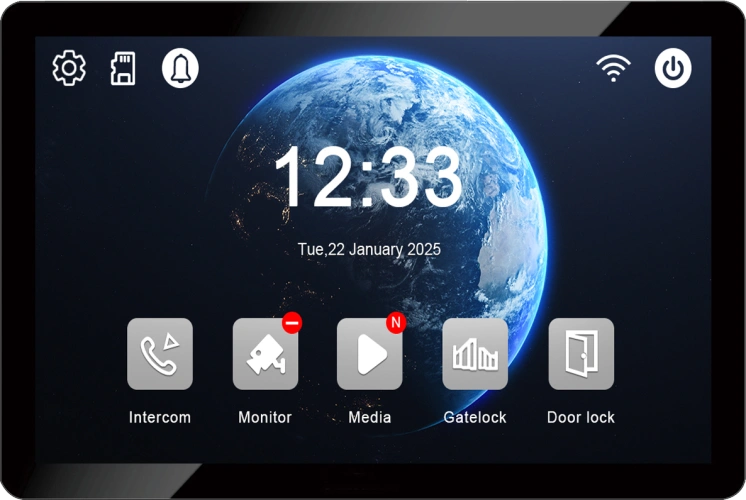
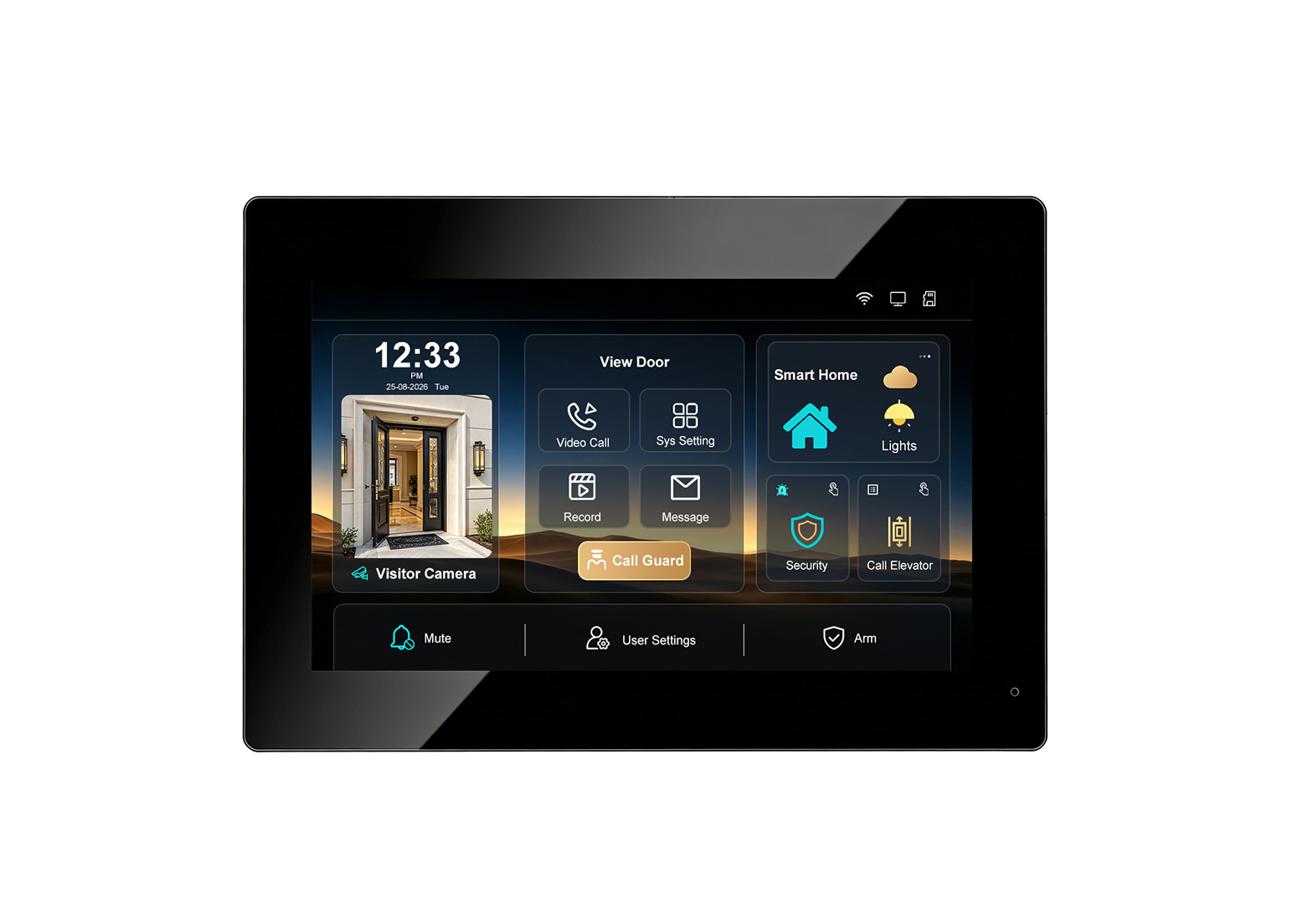
- Clear on-screen prompts – the monitor displays step-by-step instructions for WiFi connection and app binding.
- QR code on screen – no need to search for a label on the back of the device; the binding code is displayed directly on the monitor.
- Progress indicators – the screen shows connection status, so the resident knows whether the device is searching, connected, or failed.
- Error messages with guidance – if the WiFi password is wrong or the signal is weak, the screen explains the issue in plain language.
The goal is to reduce installer callbacks and empower residents to complete the setup themselves.
Before You Begin: What You Need
- The IP villa video door phone – indoor monitor powered on and connected to the outdoor station.
- A smartphone – iOS or Android, with the Tuya Smart Life app installed.
- A 2.4GHz WiFi network – the device does not support 5GHz WiFi for initial pairing.
- The WiFi password – ready to enter.
- A stable power supply – the monitor should remain powered during setup.
Importante: The phone used for pairing must be connected to the same 2.4GHz WiFi network that the door phone will join.
Step 1: Connect the Indoor Monitor to WiFi
- Power on the indoor monitor – wait for the main interface to load.
- Enter the Settings menu – tap the gear icon on the home screen.
- Select “Network Settings” – the new UI places this option at the top of the settings list.
- Choose “WiFi” – the monitor scans for available networks.
- Select your 2.4GHz WiFi network – enter the password using the on-screen keyboard.
- Wait for connection confirmation – the screen displays “Connected” and shows the WiFi signal strength.
If the connection fails, the new UI provides a specific error message (e.g., “Incorrect password” or “Signal too weak”). Adjust and retry.
Step 2: Scan the QR Code to Bind with the App
Once the monitor is connected to WiFi, the binding process begins.
- Open the Tuya Smart Life app on your smartphone and log in.
- Tap the “+” icon in the top right corner to add a device.
- Select “Scan QR Code” – the app opens the camera.
- Locate the QR code on the indoor monitor – the new UI displays a binding QR code on the screen under “App Binding” or “Device Pairing.”
- Scan the QR code with your phone – the app reads the device ID and initiates pairing.
- Confirm the device – the app shows the device name and asks you to add it to a room.
- Nombre del dispositivo – e.g., “Villa Front Gate” or “Main Entrance.”
- Wait for binding confirmation – the monitor displays “Binding Successful” and the app shows the device as online.
Nota: The QR code is time-limited for security. If it expires, refresh the screen to generate a new code.
What the New UI Changes in the Binding Process
| Previous UI | New UI |
|---|---|
| QR code printed on a label or manual | QR code displayed on the monitor screen |
| Manual device ID entry required if scan failed | QR code refresh option on screen |
| Unclear error messages | Specific prompts for WiFi and binding failures |
| Separate menus for WiFi and app binding | Guided setup flow from network to app in one sequence |
The result is a setup experience that mirrors consumer smart home devices—familiar, visual, and fast.
Solución de problemas comunes
| Edición | Posible causa | Solución |
|---|---|---|
| WiFi network not found | 5GHz network selected or signal weak | Ensure the monitor is within range of a 2.4GHz network; move closer to the router if needed |
| WiFi password rejected | Incorrect password | Re-enter the password carefully; check for case sensitivity |
| QR code not scanning | Screen brightness too low or camera angle poor | Increase monitor brightness; hold phone steady and ensure the full QR code is visible |
| App shows “Device offline” after binding | WiFi connection dropped | Check WiFi signal; reconnect the monitor to the network |
| Binding fails repeatedly | Device already bound to another account | Reset the device’s network settings and retry; ensure the device is not linked to a previous account |
Best Practices for Villa Installations
- Confirm 2.4GHz WiFi coverage at the monitor location before installation. Weak signal causes app disconnections.
- Complete WiFi and app binding before final mounting – it is easier to troubleshoot on a bench than on a wall.
- Document the device name and room assignment in the app for future maintenance.
- Share app access with family members using the app’s Home Management feature.
- Keep the monitor firmware updated – the new UI may receive improvements over time.
Technical Specifications (Relevant to Connectivity)
| Característica | Especificación |
|---|---|
| WiFi | 2.4GHz (for Tuya Smart Life app) |
| App | Tuya Smart Life (iOS / Android) |
| Binding method | QR code on indoor monitor screen |
| Network protocol | TCP/IP (for IP models) |
| Potencia | PoE or adapter (model dependent) |
Why Choose FARHD for IP Villa Door Phones?
FARHD has been designing and manufacturing video intercom systems since 1998, with over 28 years of industry experience. The new UI is part of our commitment to continuous improvement—making smart features easier to use and faster to deploy.
Key advantages:
- New UI – guided WiFi and QR code binding.
- WiFi & Tuya app – remote answer, live view, and unlock.
- 128GB local storage – no cloud subscription required.
- Soporte multilingüe – ready for global projects.
- IP65 outdoor stations – rated for -40°C to +70°C.
- OEM/ODM/SKD – custom branding, packaging, and software.
- No MOQ – start with a sample; scale as you grow.
Contact Us for Catalog, Pricing, and Samples
If you are sourcing IP villa door phones with a modern, user-friendly setup experience, FARHD is ready to support your project with documentation, samples, and factory-direct pricing.
📩 Email: [email protected]
🌐 Website: www.farhd.com
📱 WhatsApp: +86 188 2370 9809 / +86 199 2545 1918
FARHD – Video Intercom Manufacturer Since 1998.
#IPVillaIntercom #WiFiSetup #QRCodeBinding #TuyaApp #NewUI #VideoDoorPhone #SmartHome #FARHD #OEM #ODM #BuildingSecurity
También le puede interesar
-

Visit FARHD at the 2026 China International Security Products Expo — November 3–6, 2026, Booth W1Y05
The 2026 China International Security Products Expo will be held November 3–6, 2026. As a Chinese source factory with 28 years of focus on video door phones and intercom systems, FARHD sincerely invites distributors, system integrators, real estate developers, and assembly factory partners from around the world to visit Booth W1Y05 for face-to-face discussions on…
-
Audio Intercom Systems with 2-Wire Connection and Easy Card Management: Simple, Reliable Access Control for Modern Buildings
Not every building project needs video. In many apartment buildings, office complexes, residential communities, and staff facilities, clear audio communication combined with reliable access control is the practical, cost-effective choice. What matters most in these environments is straightforward installation, simple operation, and long-term reliability—especially when managing access cards across dozens or hundreds of users. FARHD’s…
-
Newly Upgraded UI for IP Video Villa Door Phone: WiFi & App Supported, Up to 128GB Memory Card, Multiple Languages
A video intercom is only as good as the interface residents use every day. A powerful system with a confusing menu is a system that frustrates the people it is meant to protect. That is why FARHD has completely redesigned the user interface for its IP video villa door phone—making every function easier to reach,…
-
2-Wire Apartment Outdoor Station Time & Date Settings, and Binding Indoor Monitors to the App
In a 2-wire apartment intercom system, two configuration tasks often determine whether the system behaves predictably in daily use: correct time and date on the outdoor station, and correct binding of each apartment’s indoor monitor to the mobile app. Time stamps affect event logs, visitor snapshots, and recorded clips. App binding determines whether residents can…