IP Tuya Villa Kit: Grey Stripes Monitor & Black Call Panel – Connection and Functions Guide
julio 22, 2026
Comparte este artículo
A smart villa deserves a smart entrance. The FARHD IP Tuya Villa Kit combines a sleek grey stripes indoor monitor with a durable black outdoor call panel, delivering a complete IP-based video intercom solution that integrates seamlessly with the Tuya Smart Life app for remote access and control.
This guide walks you through everything you need to know – from physical connections and core functions to app setup and troubleshooting.
📦 Kit Overview
The kit includes two main components:
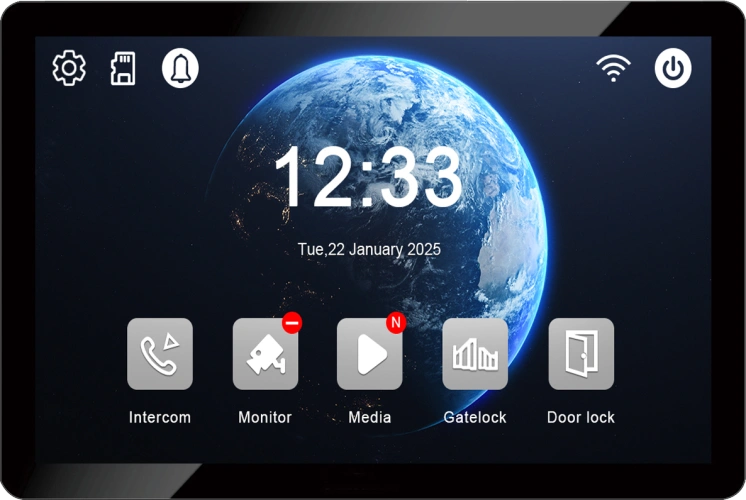
Indoor Monitor (Grey Stripes)
- 7-inch IPS touchscreen (1024×600 resolution)
- Linux operating system – stable, secure, no slowdowns over time
- TCP/IP network connectivity via CAT5/CAT6
- PoE (Power over Ethernet) support – one cable for power and data
- Micro SD card slot (up to 128GB) for local photo and video storage
- Dual unlock relays – independently control main door and garden gate
- Multi-language interface – ready for global markets
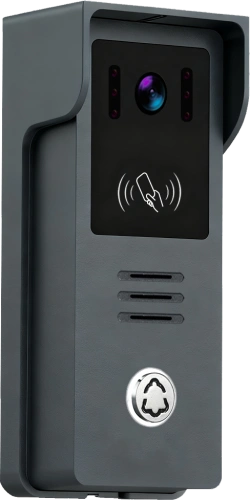
Outdoor Call Panel (Black)
- 1080P 2MP HD camera – sharp, detailed video
- 115° wide-angle lens – captures a broad entrance view, no blind spots
- Infrared night vision – clear video even in complete darkness
- IP65 weatherproof – dust-tight, protected against low-pressure water jets
- Built-in IC/ID card reader – keyless entry with a tap
- Full-duplex two-way audio with echo cancellation
- Wall-mounted design, durable construction
🔌 Connection Guide
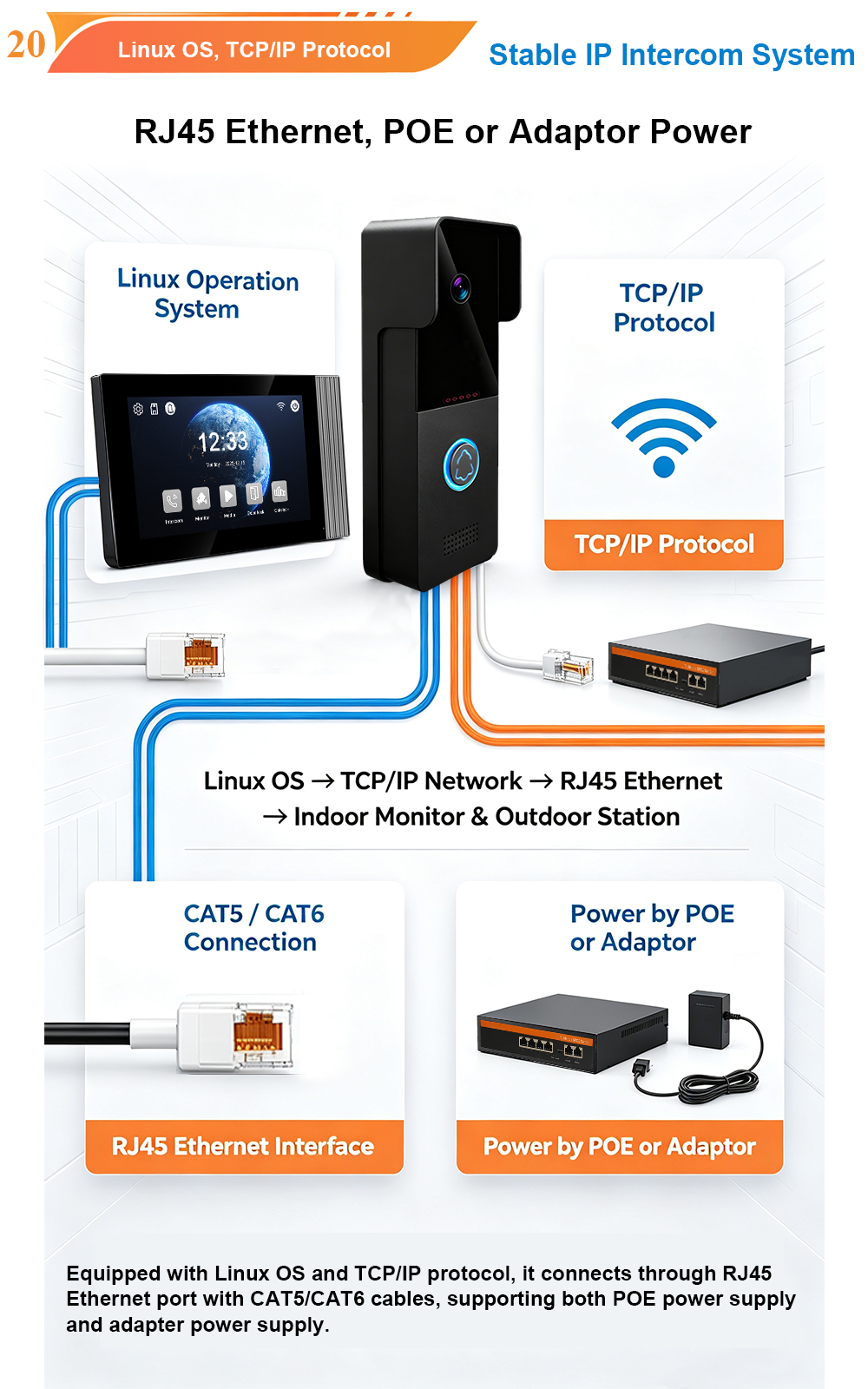
The system uses standard TCP/IP networking and supports PoE for a clean, simple installation. Both the indoor monitor and outdoor call panel connect via CAT5/CAT6 network cables (RJ45).
Step 1: Connect the Indoor Monitor (Grey Stripes)
- Connect a CAT5/CAT6 cable from the monitor’s RJ45 port to your network router or PoE switch.
- The monitor supports PoE – power and data over a single cable. Alternatively, use the included power adapter.
Step 2: Connect the Outdoor Call Panel (Black)
- Connect a CAT5/CAT6 cable from the call panel’s RJ45 port to the same network router or PoE switch as the indoor monitor.
- Ensure both devices are on the same local network for proper communication.
Nota: In IP systems, the outdoor station transmits a VoIP (Voice over IP) call over the building’s network, ringing the indoor monitor and smartphone app simultaneously.
⚙️ Core Functions & Operation
Using the Indoor Monitor (Grey Stripes)
The 7-inch touchscreen serves as your central command hub:
| Función | How to Use |
|---|---|
| Answer Call | Tap the green Answer button during an incoming call |
| End Call | Tap the red End button to hang up |
| Unlock Door | Tap the Unlock button – releases the door lock |
| Live Monitor | Toque Supervisar to view the outdoor camera feed at any time |
| Switch Call Panels | Tap the call panel name to switch between multiple outdoor stations |
| Manual Recording | Toque Photo o Vídeo during a call or monitoring to capture media |
| Control de volumen | Tap the Sound button to adjust speaker volume |
| Mute Microphone | Tap the MIC button to mute the microphone |
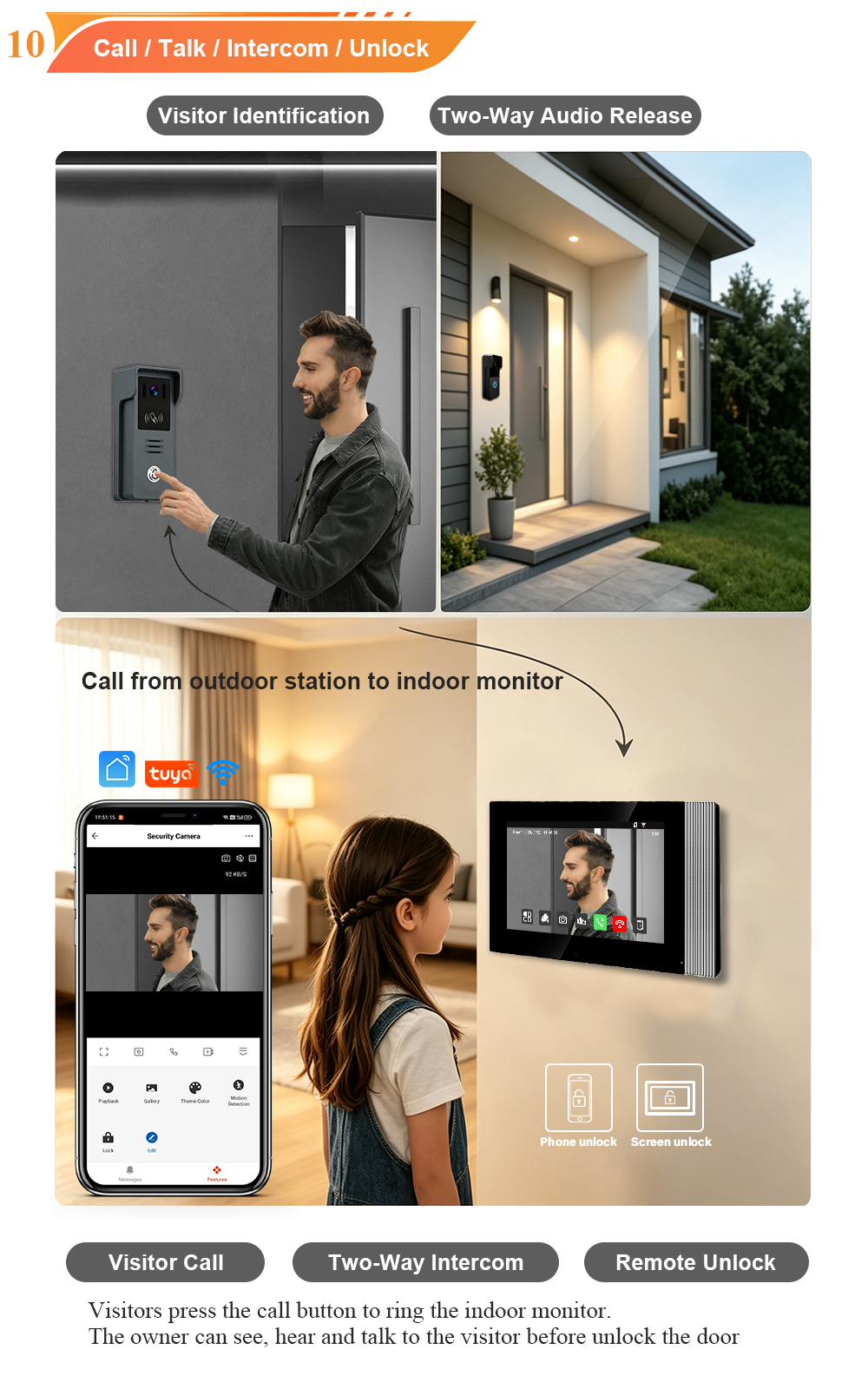
Two-way intercom: When a visitor calls, the indoor monitor rings and displays the live video. The resident can talk to the visitor, and during the call, tap Unlock to open the door – the system automatically hangs up after a few seconds.
Using the Outdoor Station (Black Call Panel)
The call panel is designed for simple visitor use:
- Calling – Visitor presses the large Call Button, which rings the indoor monitor(s) and the Tuya app.
- Card Access – Resident taps a registered IC/ID card on the built-in reader to unlock the door.
- Conversación bidireccional – Full-duplex audio with echo cancellation for natural conversation.
- Visión nocturna – Infrared LEDs automatically activate in low light for 24/7 visibility.
📱 Tuya / Smart Life App Setup
The system connects to the Tuya Smart o Vida inteligente app for remote access and control.
Paso a Paso:
- Download the “Tuya Smart” or “Smart Life” app from Google Play or the App Store.
- Create an account or log in if you already have one.
- Ensure your phone is connected to the same 2.4G WiFi network as the indoor monitor – 5G is not supported.
- Open the app, tap «Agregar dispositivo» , and the app will automatically search for and pair with your monitor.
- Follow the on-screen prompts to complete pairing.
Once Connected, You Can:
| Característica | Beneficio |
|---|---|
| Remote Answer | Receive and answer doorbell calls on your smartphone – from anywhere |
| Vista en directo | Check the outdoor camera feed anytime, day or night |
| Desbloqueo remoto | Unlock the door for guests or deliveries with a single tap |
| Alertas de movimiento | Receive push notifications when movement is detected near the door |
| Call Logs | View and manage call history directly from the app |
🔧 System Expandability
The IP Tuya Villa Kit is designed to grow with your needs:
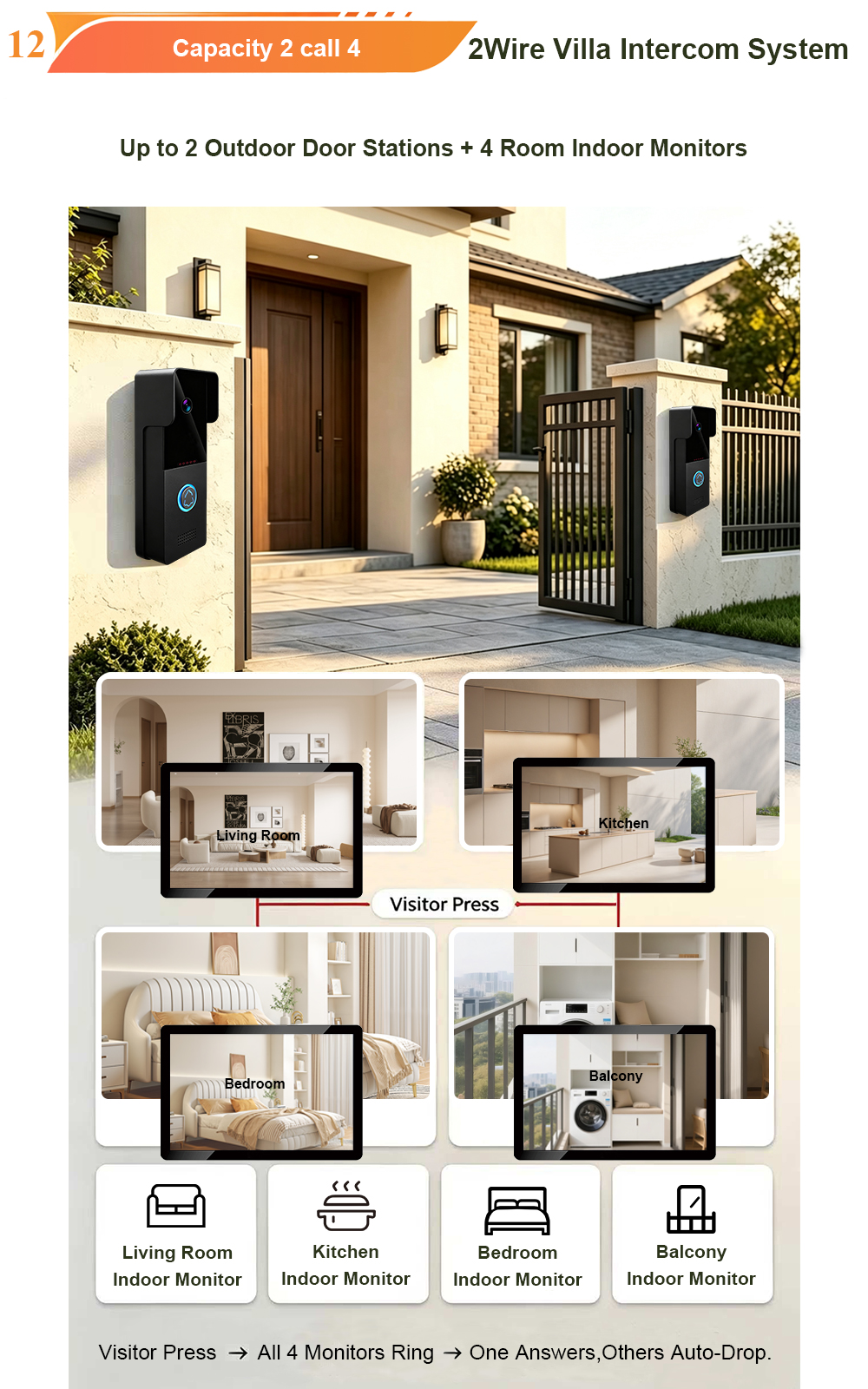
- Supports up to 2 outdoor call panels – ideal for front and back entrances
- Supports up to 4 indoor monitors – place them in the living room, bedroom, kitchen, and study
- Connect additional ONVIF IP cameras for expanded surveillance coverage
- Room-to-room calling between indoor monitors for internal communication
🛠️ Troubleshooting & Tips
| Edición | Solución |
|---|---|
| WiFi not connecting | The monitor only supports 2.4G WiFi – ensure your phone and monitor are on the same 2.4G network |
| Monitor and call panel not communicating | Verify both devices are on the same local network – check IP addresses and subnet masks |
| Forgotten admin password | The default password for advanced system settings is often 666666 |
| Card not working | Register the card through the monitor’s Advanced setting menu – enter the admin password to add or delete IC/ID cards |
| Poor video quality | Check network connection speed – for long cable runs, ensure CAT5/6 cable quality meets specifications |
| Pairing wireless models | If using wireless pairing, press and hold the LINK button on the monitor, then press the pairing button on the outdoor station until the signal light flashes quickly |
Por qué elegir FARHD?
- Over 28 years of manufacturing experience – trusted by customers in over 90 countries
- Direct factory – competitive pricing, full quality control, short lead times
- OEM / ODM ready – custom logo, packaging, and software language available
- No MOQ for trial orders – start with a sample kit; scale as you grow
- Global technical support – documentation, videos, and remote assistance
Ready to Upgrade Your Villa Security?
El IP Tuya Villa Kit – with its grey stripes indoor monitor and black call panel – delivers smart, reliable, and expandable video intercom for modern villas and homes. From simple wired connections to full Tuya app integration, this system puts security and convenience at your fingertips.
📩 Contact us for catalog, pricing, or to request a sample.
🌐 Website: www.farhd.com
📧 Email: [email protected]
FARHD – Video Intercom Manufacturer Since 1998.
También le puede interesar
-
2-Wire Video Door Phone Connection with Electric Rim Lock: Unlock by Card, Indoor Monitor, and App
A complete guide to wiring an electric rim lock to a FARHD 2-wire video door phone system—and configuring three convenient unlock methods: RFID card, indoor monitor, and mobile app. Whether you are upgrading an existing building or specifying a new system, this guide covers the essentials for reliable, secure access control. Electric rim locks are…
-

Video Intercom Manufacturer & Source Factory Since 1998 | OEM ODM SKD Building Intercom
Video Intercom Manufacturer & Vertical Source Factory in China FARHD is a professional video intercom manufacturer with over 28 years of specialized experience in building security intercom systems. Established in 1998, we are a genuine building intercom factory focused on independent R&D, in-house production, and customized manufacturing for global B2B clients, including distributors, importers, engineering contractors, real estate…
-
FARHD Video Intercom System: Versatile Solutions for Apartments and Villas
When it comes to building security and smart access, one size does not fit all. Different buildings have different wiring, different layouts, and different resident expectations. That’s why FARHD offers a comprehensive range of video intercom systems—with various indoor monitors and outdoor stations to match any apartment or villa project. Since 1998, FARHD has been…
-
Low-Temperature Test: FARHD Video Intercom Screens Keep Running Smoothly in Freezing Cold
Inside the freezing chamber, it keeps working — normal display, no black screen, no shutdown. Real quality isn’t just about lab data; it’s about staying reliable in extreme conditions. A video intercom that withstands freezing cold — because your door security can’t take a day off. In many parts of the world, winter is not…